How I Connected GA4 and Google Search Console to Claude Desktop (MCP Setup Guide)
Every time I needed to understand how my content was performing, I had at least three tabs open. GA4 for traffic. Search Console for keywords. Claude to make sense of both.
That is not a workflow. That is a serious pain for me to do nowadays. Even I thought of making a plugin for this also. But later on, I realised why not try it with Claude and see what happens.
Recently, I connected both Google Analytics 4 and Google Search Console directly to Claude Desktop using MCP servers. Now I ask Claude: “What are my top landing pages by sessions this month?” It pulls the answer from GA4, right in the chat.
No exports. No switching tabs. No copy-pasting numbers into a doc before I can think about them.
Here is the exact setup. Including the two walls I hit that no other tutorial mentioned.
Install analytics-mcp via pipx and
mcp-gsc via uvx.
Create OAuth 2.0 Desktop App credentials in Google Cloud Console. Do not use a service account.
Set the OAuth Consent Screen User Type to External.
Add both servers to
claude_desktop_config.json
along with your GA4 Property ID and credentials file path.
Restart Claude Desktop and authorize once in your browser.
What you need before starting
This guide uses Mac paths. The steps are the same on Windows except for the config file location.
- Claude Desktop installed (Pro)
- A Google account with admin access to your GA4 property and GSC property
- Python 3.9+ installed
- pipx installed:
brew install pipxon Mac, or follow pipx.pypa.io - uv / uvx installed:
brew install uvon Mac
What you will have at the end
- GA4 connected to Claude Desktop via analytics-mcp
- Google Search Console connected via mcp-gsc
- A working
claude_desktop_config.jsonthat loads both servers on startup - Answers to the two OAuth walls I personally hit — so you do not repeat them
Part 1: Set up a Google Cloud project
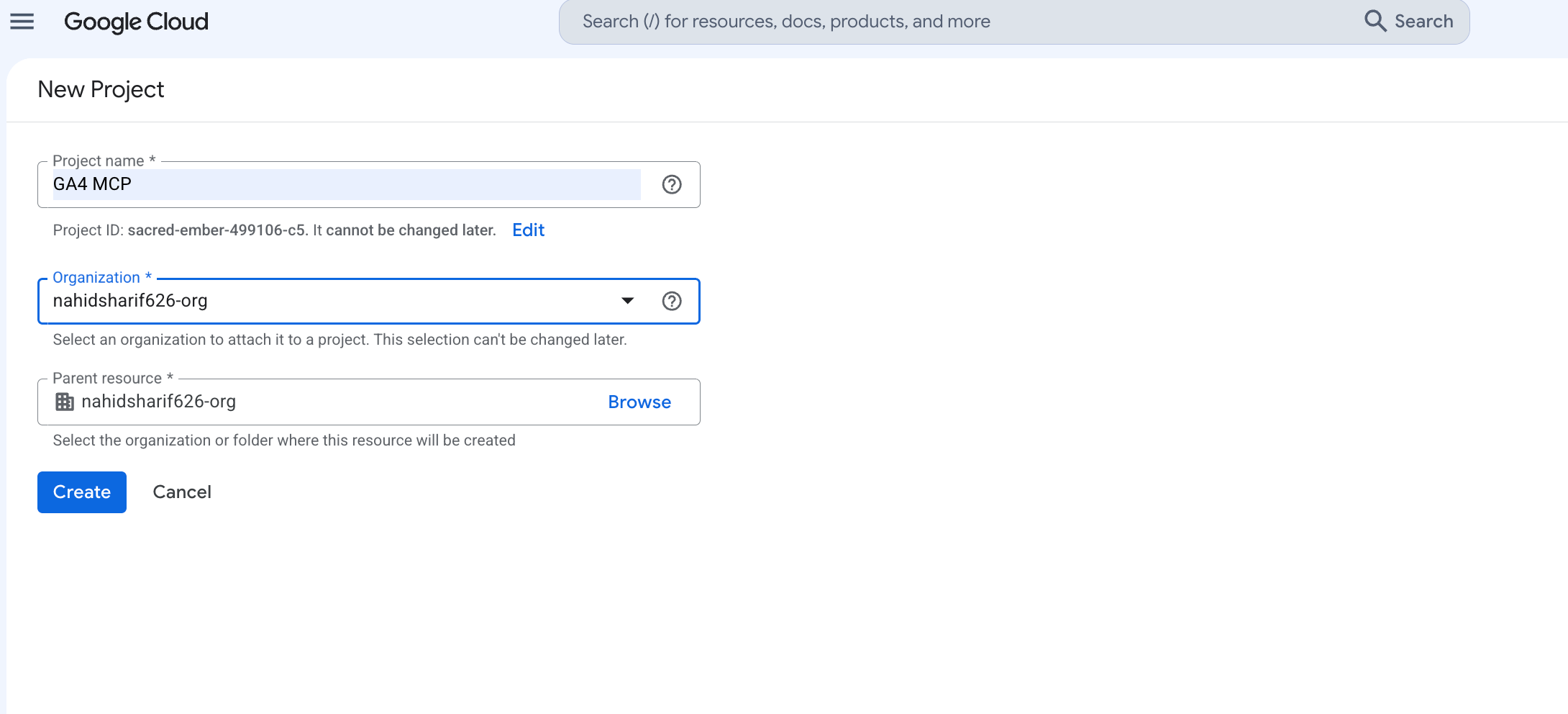
Step 1: Create a new GCP project
Go to console.cloud.google.com. Open the project selector in the header bar and click “New Project.”
Name it something you will recognize. I called mine nahidkomol-analytics-mcp. Leave the location as “No organization” unless your account is part of a Workspace org.
After creation, confirm the project is selected as your active project. You will see the name displayed in the header.
Step 2: Enable the required APIs
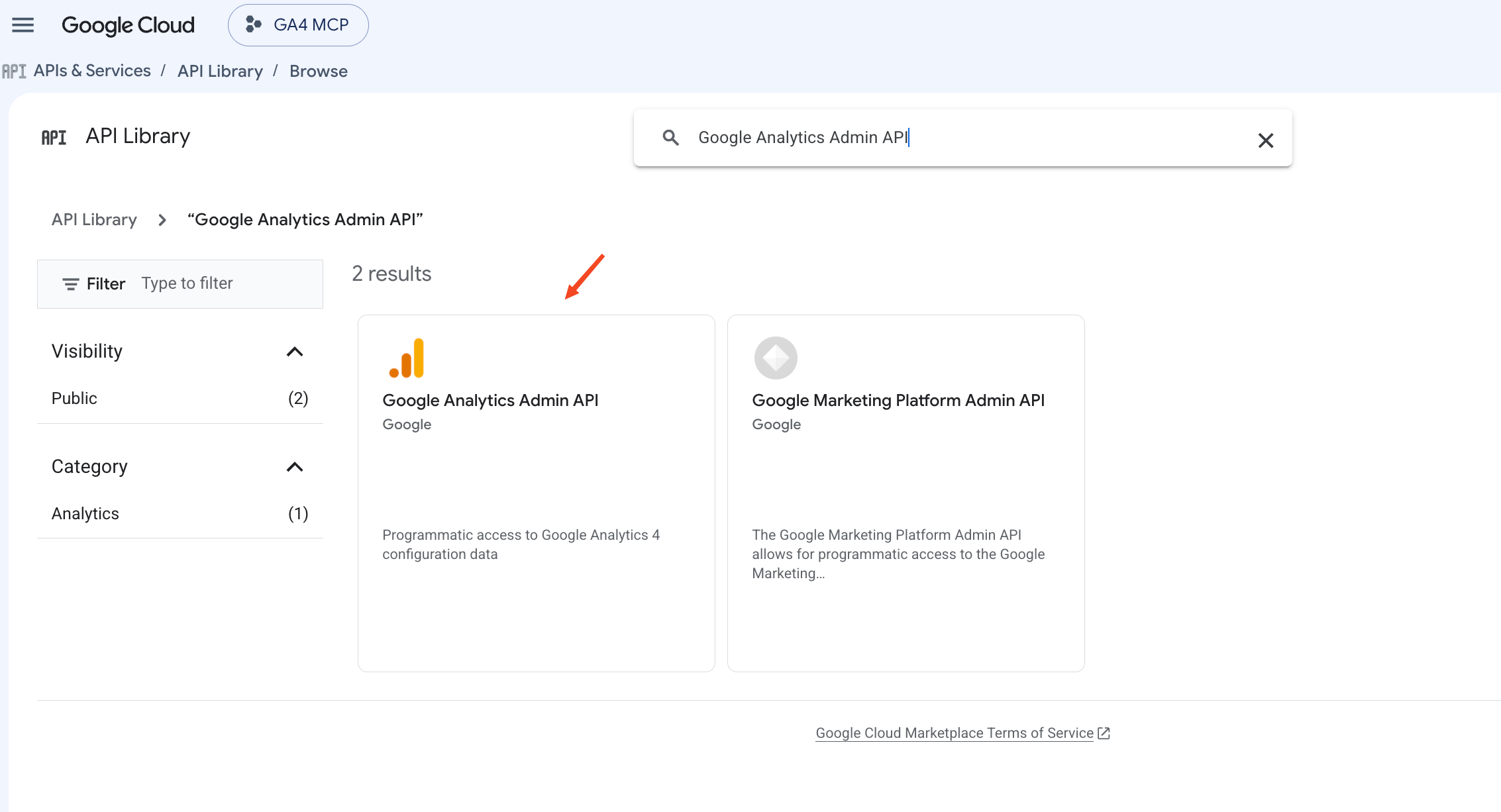
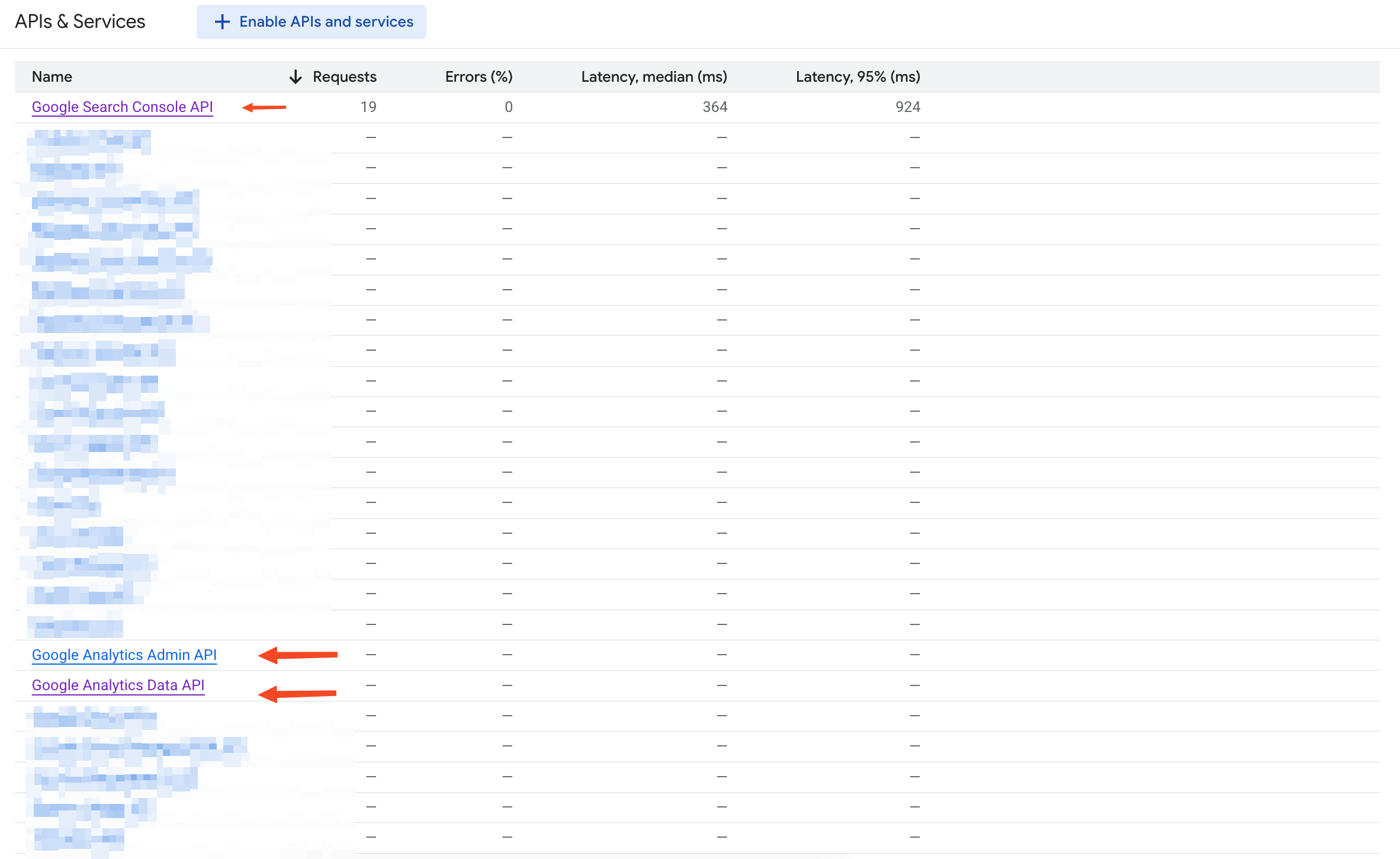
In the left sidebar, go to “APIs & Services” > “Library.” You need to enable three APIs:
- Google Analytics Admin API — used by analytics-mcp to manage property access
- Google Analytics Data API — used to run reports (sessions, events, traffic)
- Google Search Console API — used by mcp-gsc for keyword and performance data
Search for each one, click on it, and hit “Enable.” Each activation takes about 15 seconds. Wait for the confirmation screen before moving to the next.
Part 2: Create OAuth 2.0 credentials
Most guides skip the next two steps or bury them. Do not skip them. Both are required, and both are where I got stuck.
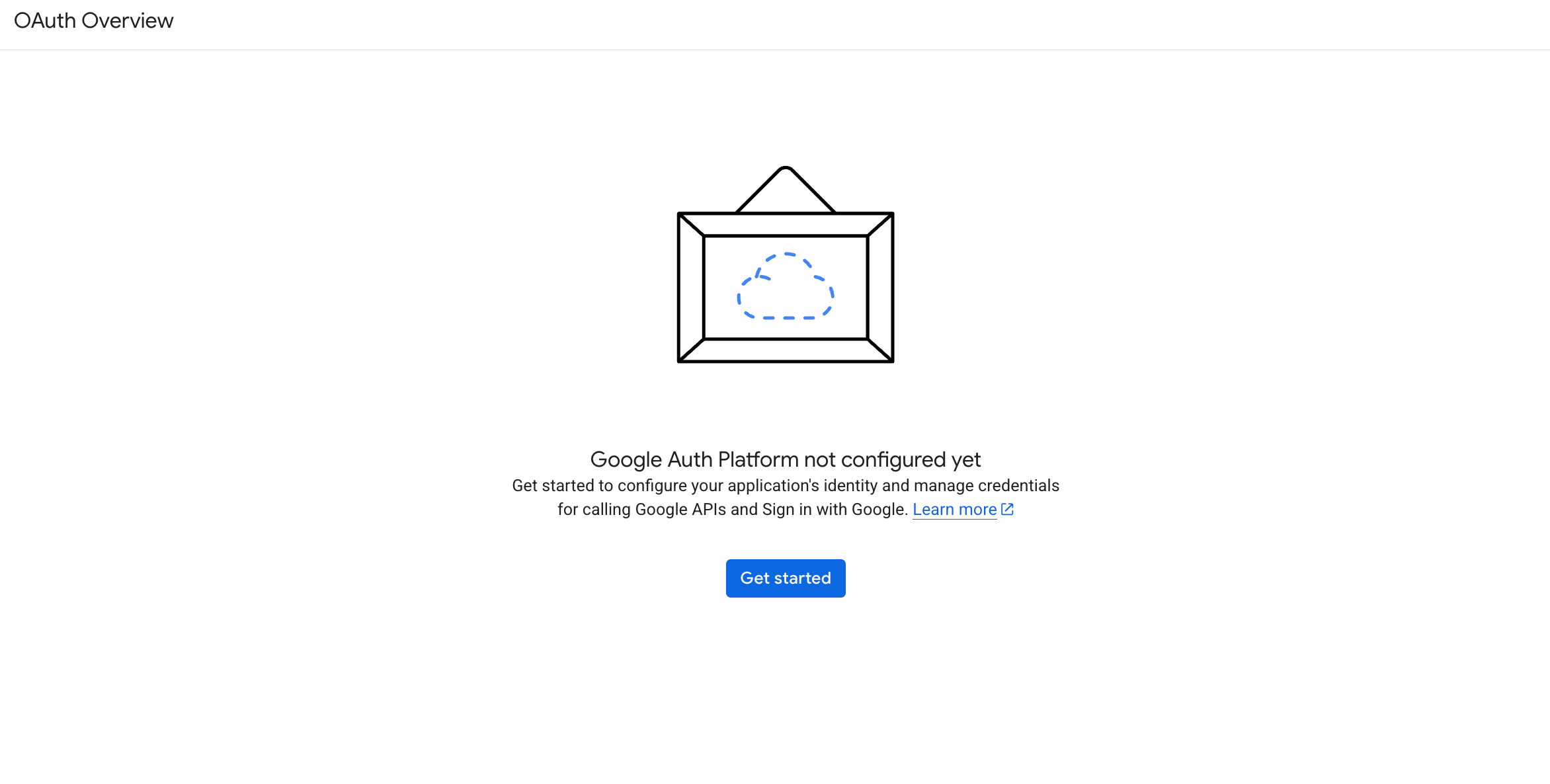
Step 3: Configure the OAuth consent screen
Before creating any credentials, go to “APIs & Services” > “OAuth consent screen.”
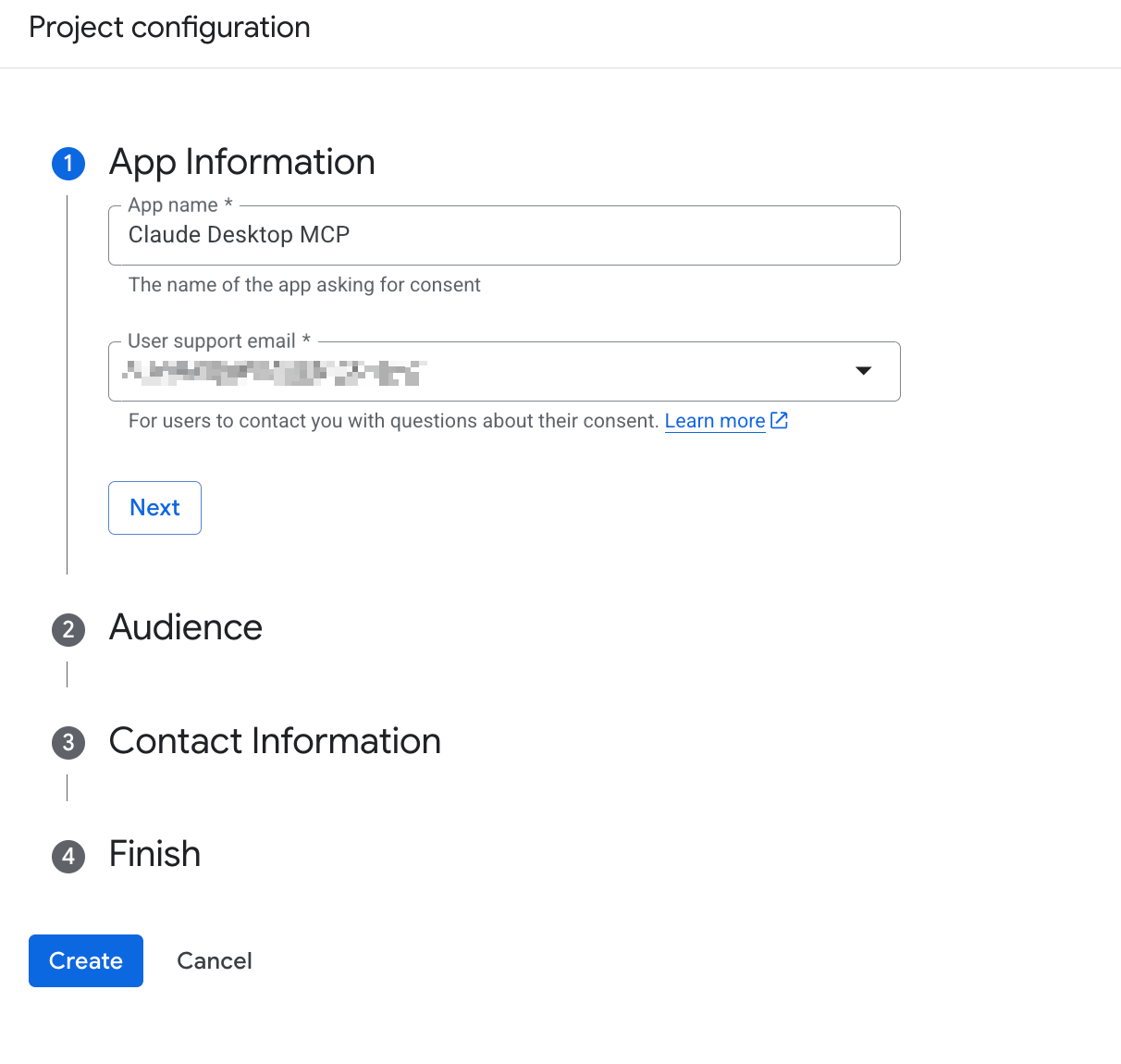
Fill in the required fields:
- App name: something like “Claude Desktop MCP”
- User support email: your Google account email
- Developer contact information: same email
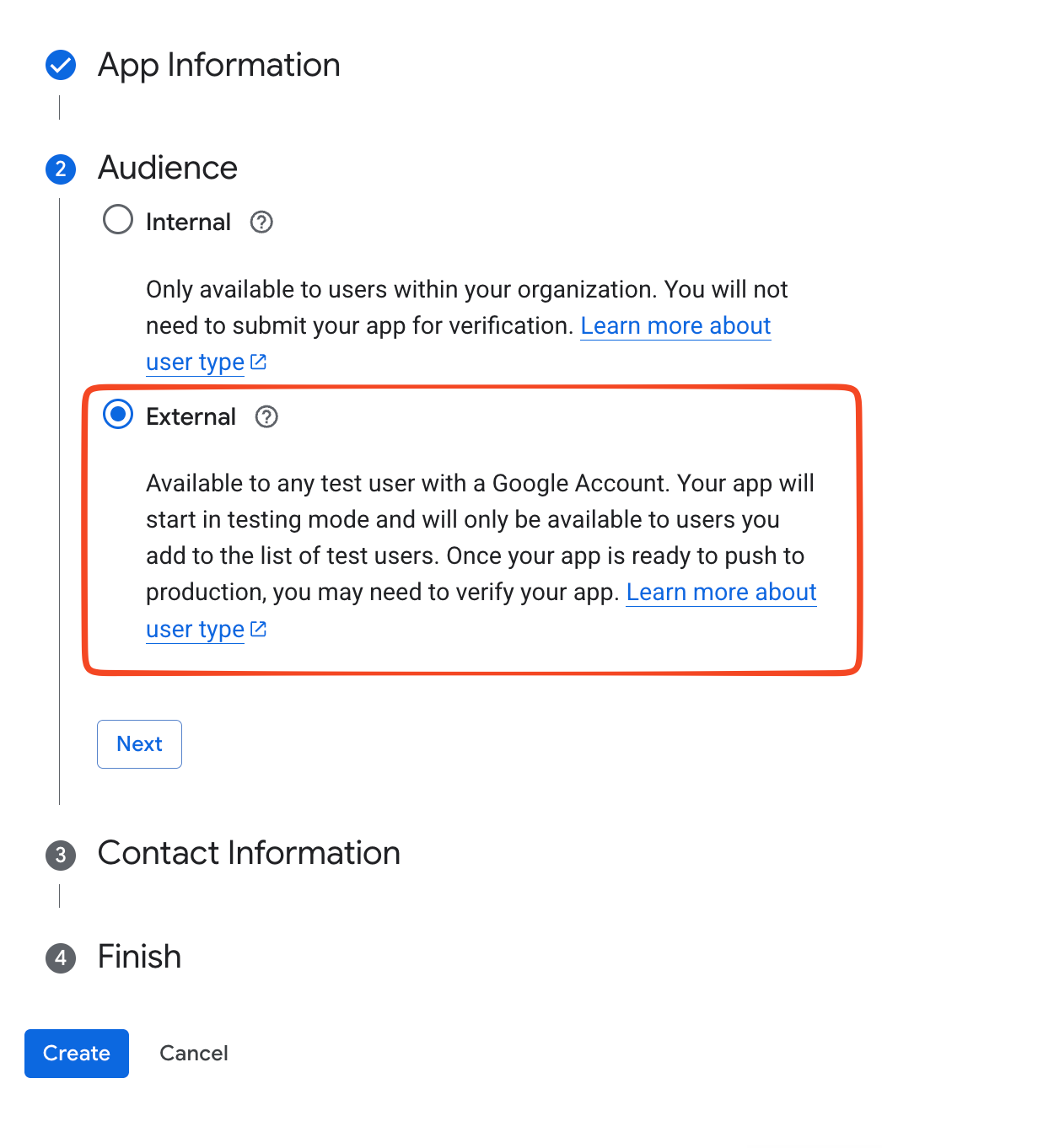
Set the User Type to External. Not Internal.
I will explain exactly why “Internal” breaks the OAuth flow in the “The Walls I Hit” section below. For now, just set it to External and continue.
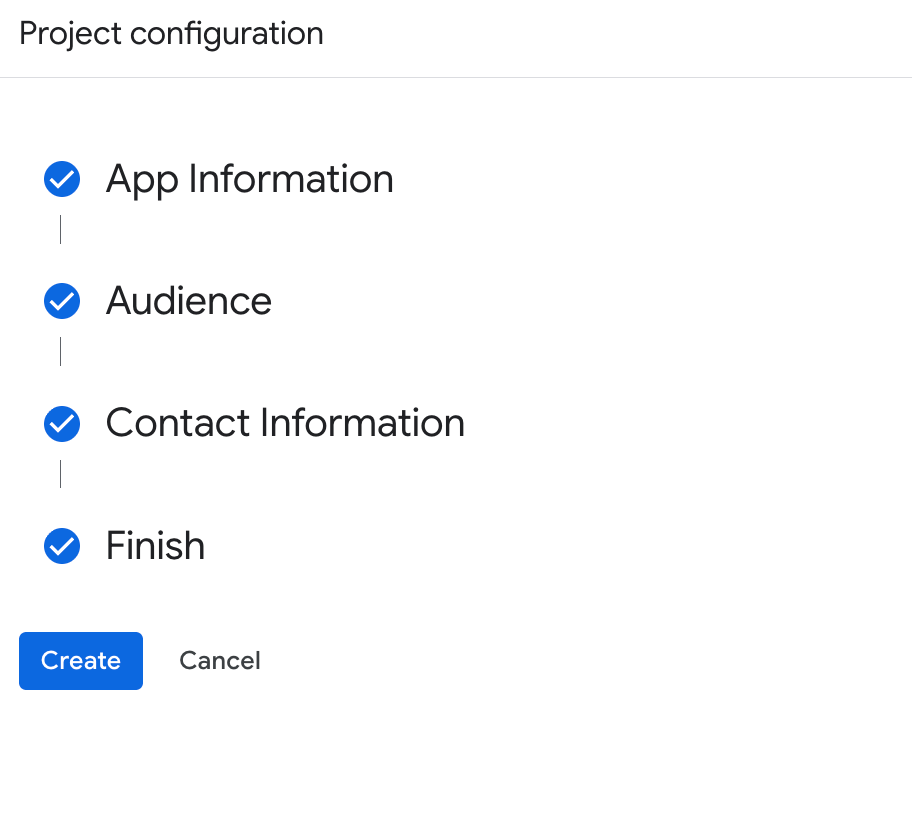
Click “Save and Continue” through the Scopes step and the Test Users step. You do not need to add scopes manually here. The MCP packages request the scopes they need during the OAuth flow at runtime.
Step 4: Create the OAuth client ID
Go to “APIs & Services” > “Credentials.” Click “Create Credentials” > “OAuth client ID.”
Set:
- Application type: Desktop app
- Name: Claude Desktop (or any name you will recognize)
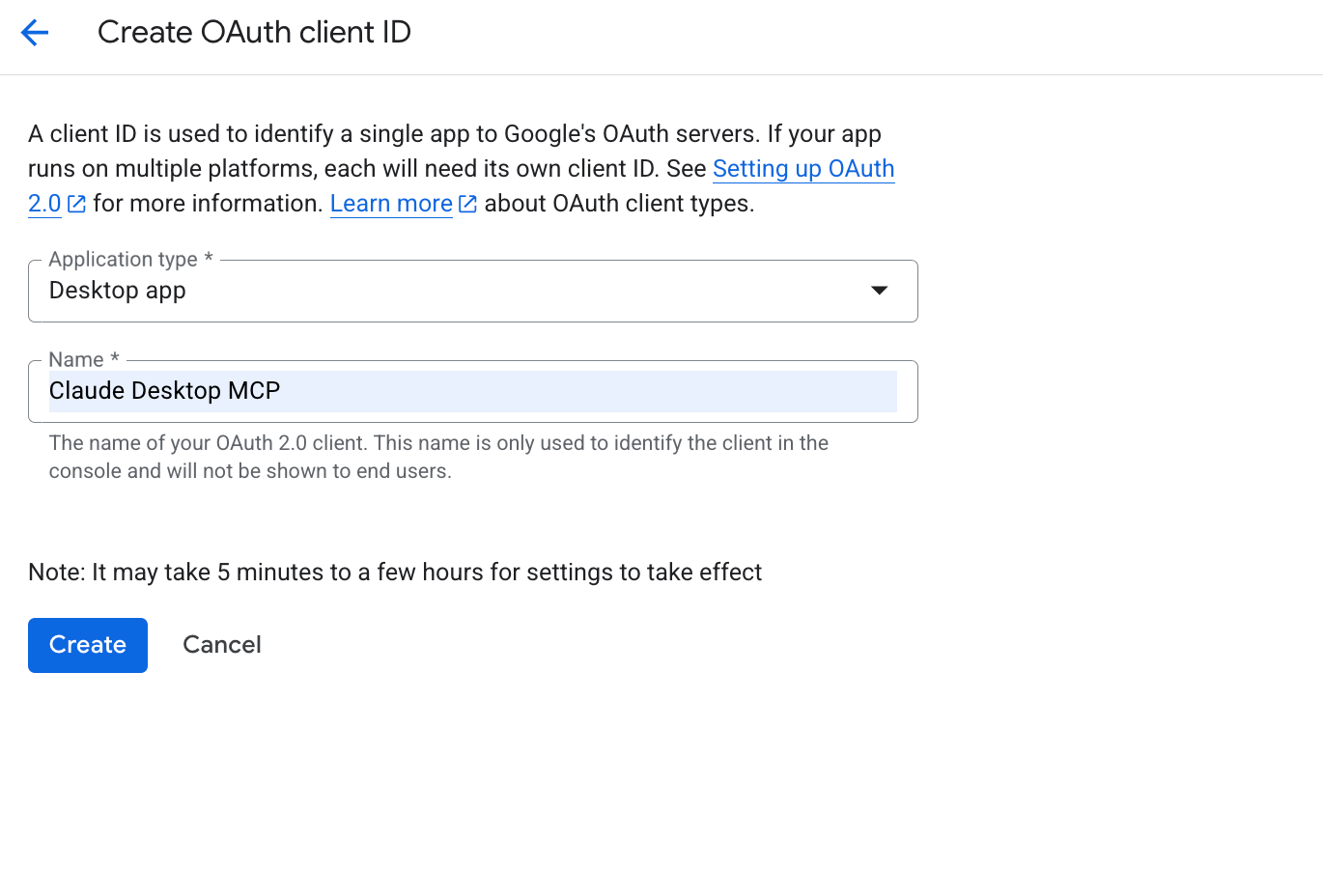
Click “Create.” A pop-up appears showing your Client ID and Client Secret. Click “Download JSON.”
Rename the downloaded file to client_secret.json. Move it to a dedicated credentials folder:
mkdir -p ~/.credentials
mv ~/Downloads/client_secret*.json ~/.credentials/client_secret.json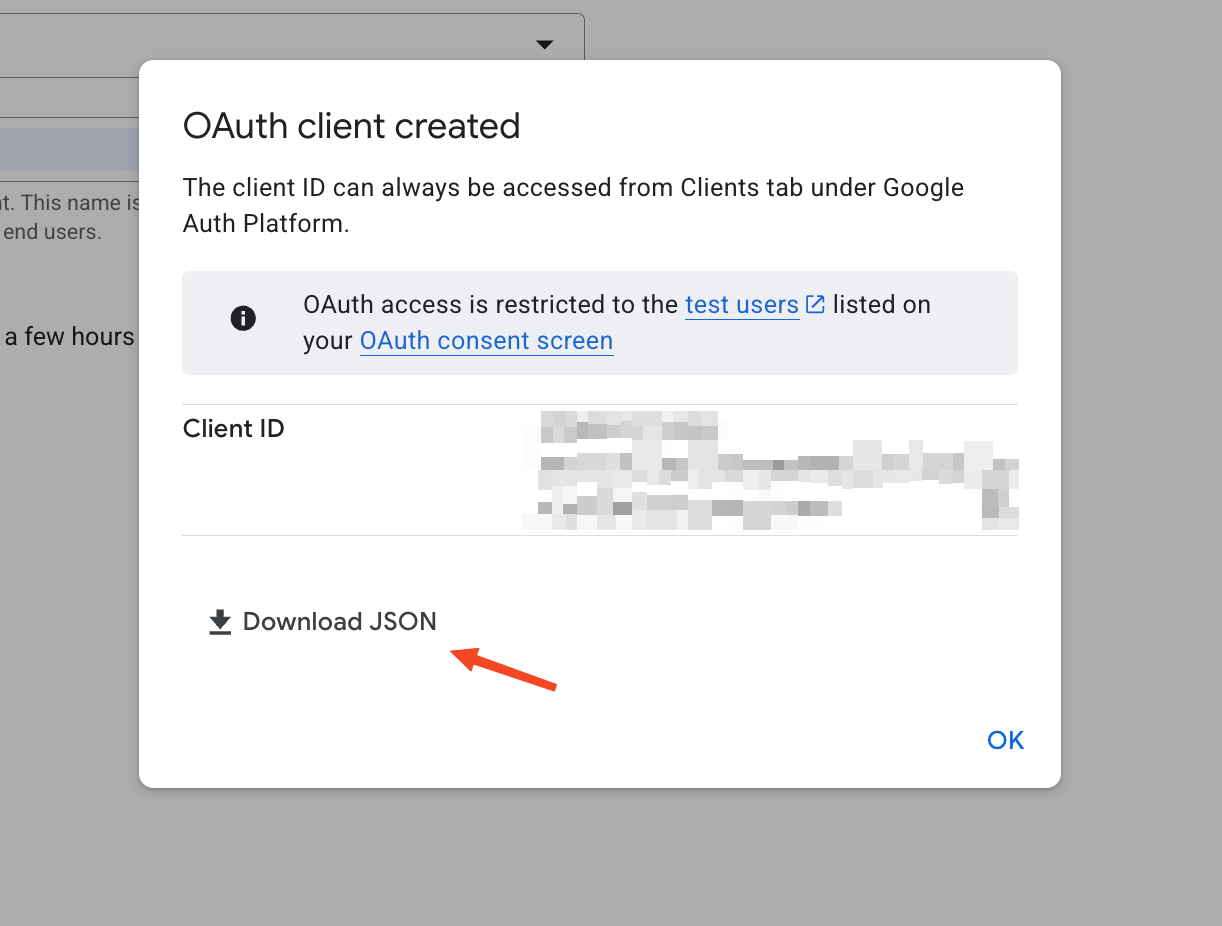
Part 3: Install analytics-mcp for GA4
Step 5: Install and verify analytics-mcp
Open Terminal and run:
pipx install analytics-mcpOnce it installs, verify it is accessible:
analytics-mcp --helpYou should see available commands listed in the output. If you see “command not found,” run pipx ensurepath and restart your terminal session.
Step 6: Find your GA4 property ID
Log into analytics.google.com. Click the gear icon (“Admin”) in the bottom-left corner. Under the Property column, go to “Property Settings.”
Your Property ID is the numeric string at the top of that page — something like 336842984. Copy it. You will need it in the config file in Step 8.
Part 4: Install mcp-gsc for Search Console
Step 7: Install mcp-gsc
In Terminal, install via pip:
pip install mcp-gscAlternatively, use uvx to run it without a permanent install. This is what I do:
uvx mcp-gsc --helpBoth approaches work in the config file. Use uvx if you prefer keeping your Python environment clean. Use pip install if you want faster startup (no download on each run).
Part 5: Configure claude_desktop_config.json
Step 8: Edit the config file
On Mac, the Claude Desktop config file is at:
~/Library/Application Support/Claude/claude_desktop_config.jsonOpen it in VS Code
code ~/Library/Application\ Support/Claude/claude_desktop_config.jsonNote: You can now move to the Claude code and ask it to configure everything for you. It will automatically do the tasks for you. I added a prompt like:
I am trying to connect Google Analytics MCP from:
https://github.com/googleanalytics/google-analytics-mcp

My environment:
- macOS
- Python 3.14
- pipx installed
- google-analytics-mcp installed successfully
- google-gsc-mcp installed successfully

Please:
1. Inspect my Claude Desktop config
2. Inspect MCP logs
3. Verify the analytics-mcp executable
4. Verify the gsc-mcp executable
5. Verify Google credentials
6. Fix the MCP configuration
7. Confirm the server appears in Claude Desktop
Add both MCP servers. Here is the exact config I am running:
{
  "mcpServers": {
    "analytics-mcp": {
      "command": "pipx",
      "args": ["run", "analytics-mcp"],
      "env": {
        "GOOGLE_CLIENT_SECRETS_FILE": "/Users/YOUR_USERNAME/.credentials/client_secret.json",
        "GA4_PROPERTY_ID": "YOUR_PROPERTY_ID"
      }
    },
    "mcp-gsc": {
      "command": "uvx",
      "args": ["mcp-gsc"],
      "env": {
        "GOOGLE_CLIENT_SECRETS_FILE": "/Users/YOUR_USERNAME/.credentials/client_secret.json",
        "GSC_SITE_URL": "https://yourdomain.com/"
      }
    }
  }
}
Three things to replace before saving:
- YOUR_USERNAME: your Mac username. Run
whoamiin Terminal to confirm it. - YOUR_PROPERTY_ID: the numeric ID from Step 6 (e.g. 336842984)
- https://yourdomain.com/ — the exact URL your GSC property uses. Check your GSC property list. The string is format-sensitive: sc-domain: properties and https:// properties use different formats.
Part 6: Restart and authorize
Step 9: Restart Claude desktop
Quit Claude Desktop fully. On Mac, use Cmd+Q or right-click the Dock icon and select “Quit.” Closing the window is not enough — the app needs a full restart to load new MCP server config.
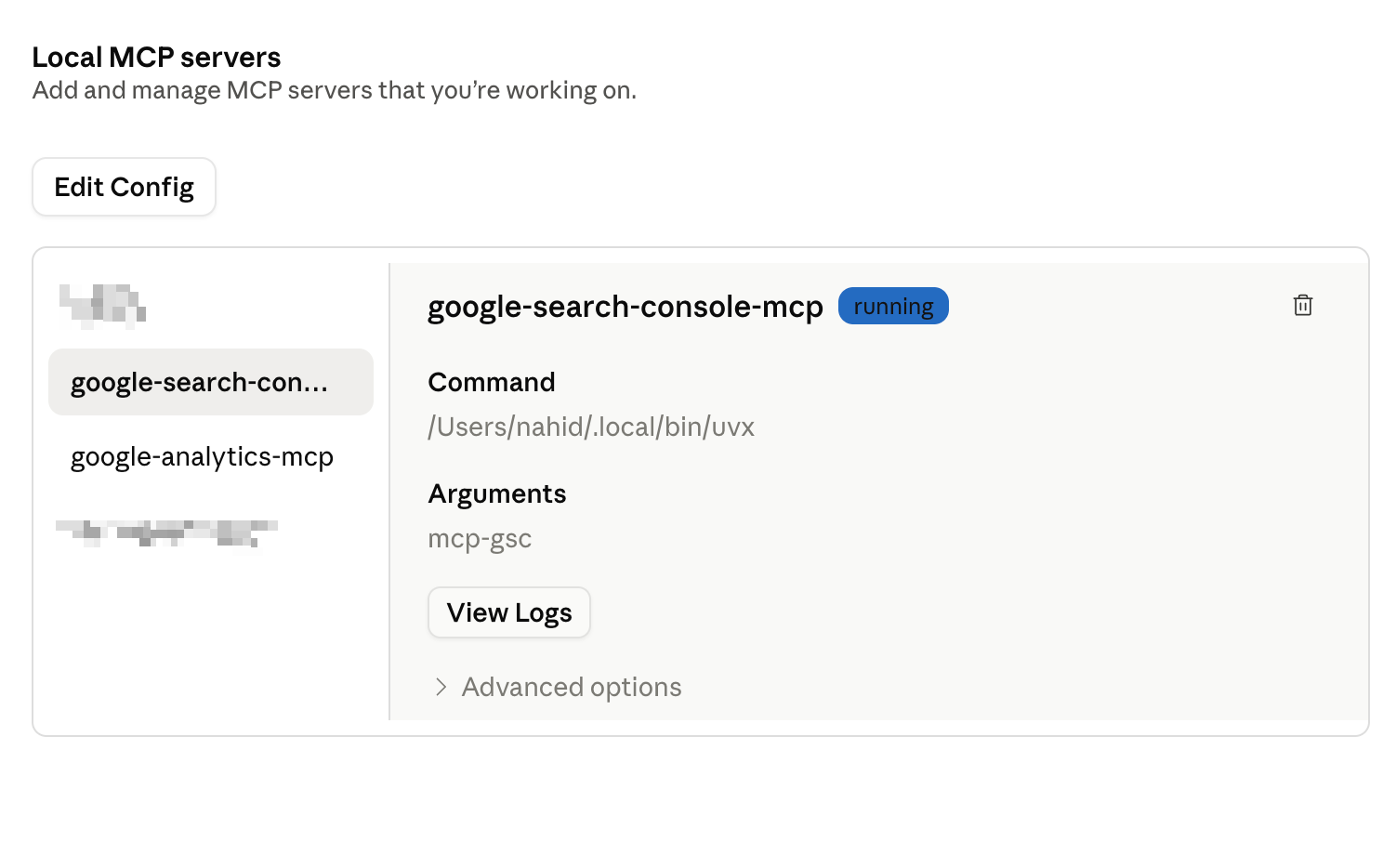
Reopen Claude Desktop. Once both MCP servers start successfully, you will see a tool indicator in the chat interface — usually a hammer icon or an MCP status area. Click it to verify both “analytics-mcp” and “mcp-gsc” appear as active.
Step 10: First-run OAuth authorization
The first time you run a prompt that calls either MCP server, a browser window will open asking you to authorize with your Google account. Sign in and click “Allow” for each server when prompted.
After authorization, both servers store a refresh token locally. You will not need to re-authorize on subsequent restarts unless you delete the token file or revoke access in your Google account settings.
Part 7: Test your connections
Try these prompts to confirm both servers are returning real data:
For GA4:
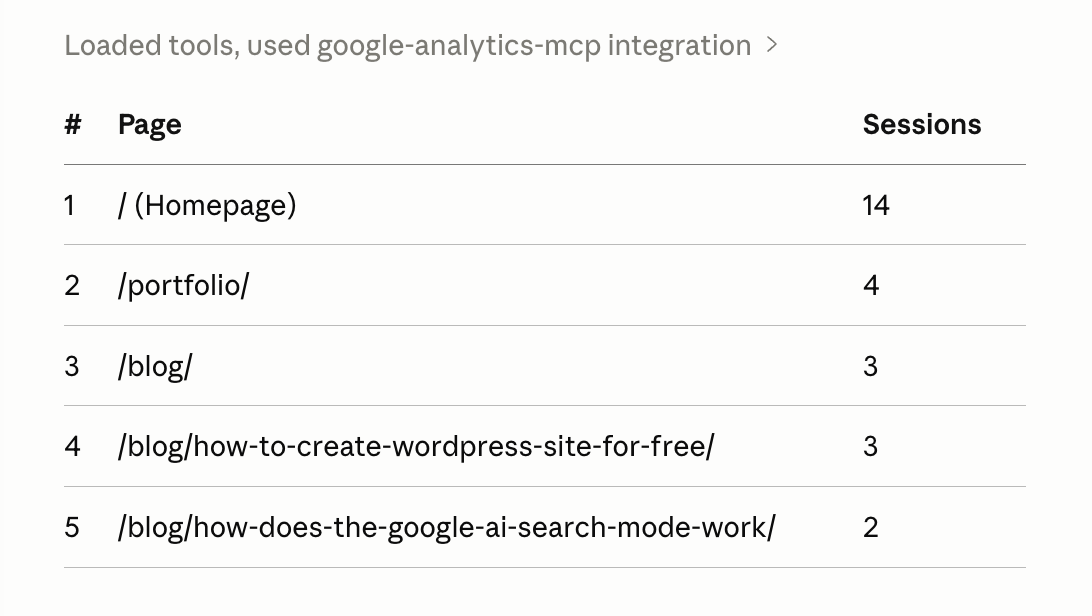
What were my top 5 pages by sessions in the last 7 days?Use your website name (yourwebsite.com) in the prompt for better results.
For GSC:
What are my top 10 keywords by impressions in the last 28 days?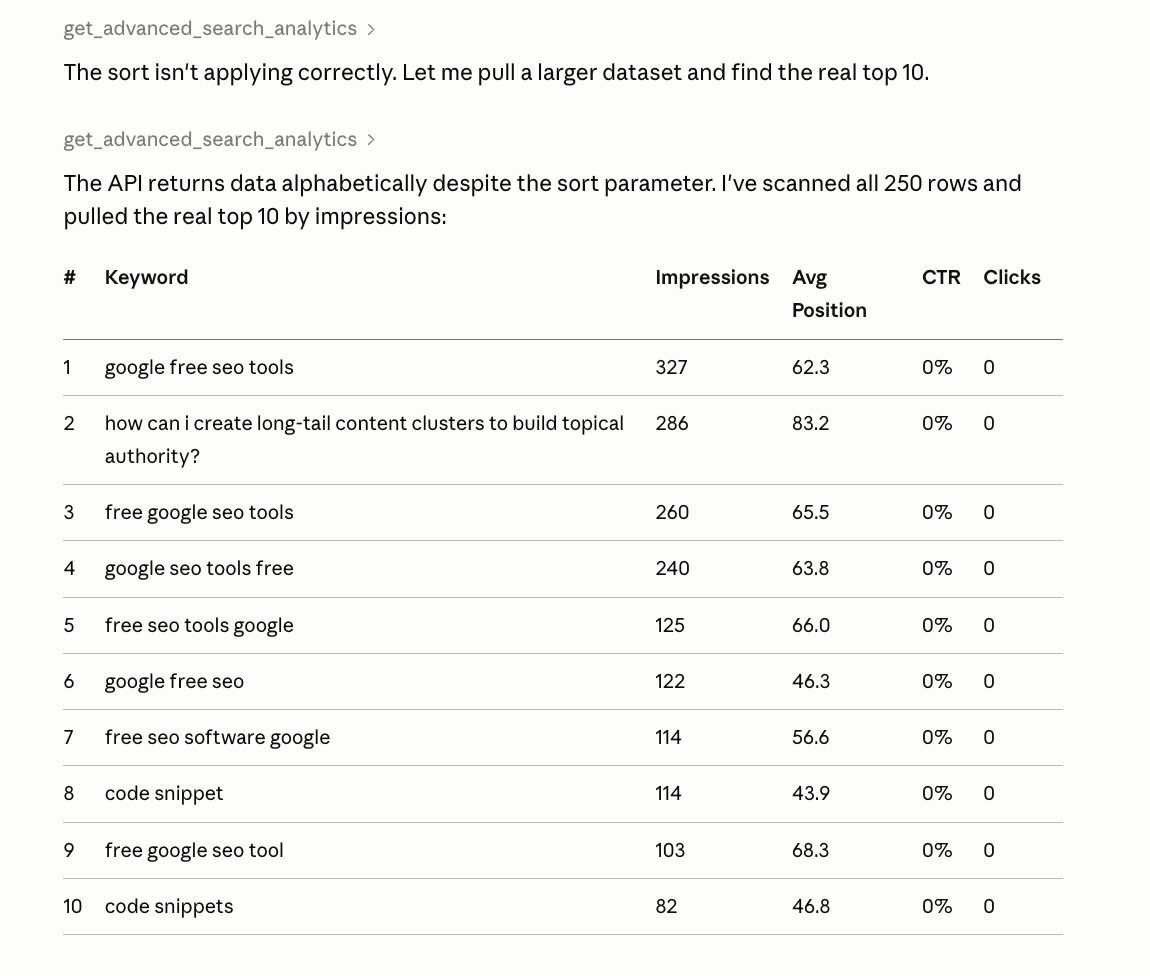
If both respond with actual data from your properties, you are done. Both connections are working.
Please note: Tell Claude to follow the same thing to connect GSC MCP with Claude. It will do the rest, and you just need to follow the instructions one by one and get the job done.
The real problem that no one tells you
I got stuck twice during this setup. Both problems cost me time. Both are fixable in under 5 minutes once you know what is wrong.
Issue 1: GA4 silently rejected service account emails
My original plan used a service account instead of OAuth. The idea was simple: create a service account in GCP, add its email to the GA4 property, use the downloaded JSON key as credentials.
GA4 silently rejects service account email addresses when you try to add them via “Property Access Management” in the Admin panel. No error message. The invite form accepts the input, you submit it, and nothing happens. The email never appears in the access list.
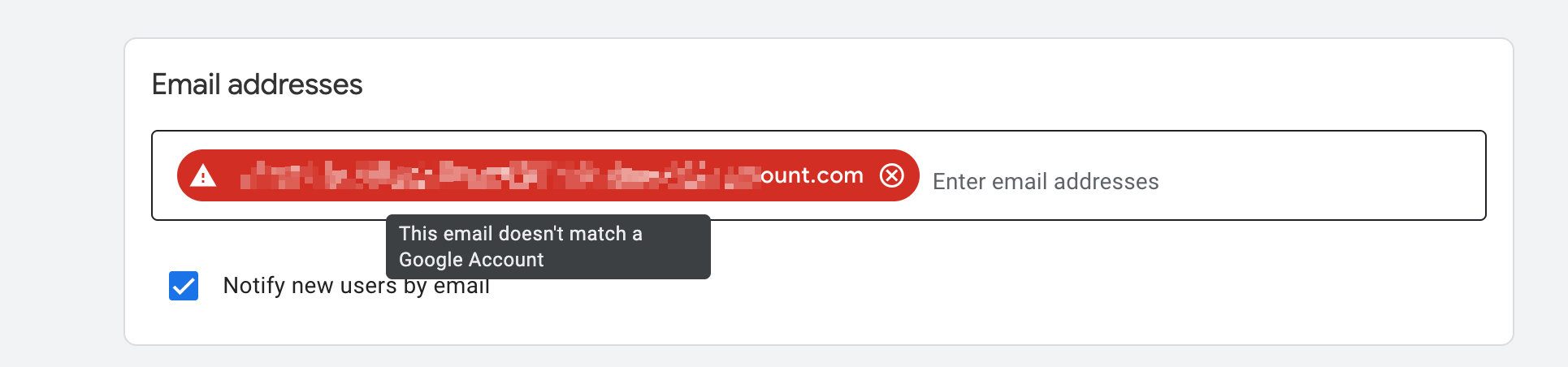
The workaround, if you want to use service accounts, is to grant property access programmatically through the Google Analytics Admin API. Here is working Python code for that:
from google.analytics.admin import AnalyticsAdminServiceClient
from google.analytics.admin_v1alpha.types import UserLink
from google.oauth2 import service_account

# Install first: pip install google-analytics-admin google-auth

credentials = service_account.Credentials.from_service_account_file(
    "service_account_key.json",
    scopes=["https://www.googleapis.com/auth/analytics.manage.users"]
)

client = AnalyticsAdminServiceClient(credentials=credentials)

user_link = UserLink(
    email_address="your-sa@your-project.iam.gserviceaccount.com",
    direct_roles=["predefinedRoles/viewer"]
)

response = client.create_user_link(
    parent="properties/YOUR_PROPERTY_ID",
    user_link=user_link
)

print(f"Access granted: {response.name}")
💡 Note: As of 2024, Google deprecated the User Links API in GA4 and replaced it with the Access Binding API. The code above may need updating to use create_access_binding instead of create_user_link. Check the GA4 Admin API docs before running it. This is another reason I moved to OAuth — no programmatic access grants to maintain.
I switched to OAuth and dropped service accounts entirely. The setup in this guide does not require this script at all.
Issue 2: OAuth consent screen set to “Internal”
The second wall was subtler. After switching to OAuth, the browser window opened during the authorization flow — which looked like progress. But Claude never received a token. The browser redirected back, no authorization was stored, and every subsequent prompt that called an MCP server triggered the auth flow again.
The problem: the OAuth consent screen was set to “Internal.” When your Google account is part of a Google Workspace organization, GCP defaults new consent screens to “Internal,” which restricts OAuth to users within that organization. The flow technically starts but cannot complete for the MCP client.
The fix: change User Type to “External” on the OAuth consent screen. Then delete the existing OAuth credentials and create new ones. Credentials already tied to an “Internal” consent screen will not work after you change the setting — you need fresh credentials.
If your OAuth flow opens a browser but never stores a token, this is almost certainly what is happening.
My use cases of this MCP setup
The connections themselves are not the product. The workflows you build on top are.
Content update decisions: I ask Claude which posts have declining sessions month-over-month from GA4, then cross-reference with GSC data on which pages are gaining impressions without ranking top-5. That intersection — declining traffic, growing impressions — tells me what to update vs. what to leave alone.
Quick title tag audits: “Show me pages with over 200 impressions but CTR under 1%.” That is a title and meta description problem list, delivered in about 10 seconds. I pull it once a week during my content review.
Anomaly detection: I check in once a week and ask if there is anything unusual in sessions or clicks compared to the same period last week. If there is a spike or drop worth investigating, I follow up. If not, I move on. The whole check takes under two minutes.
If you are building AI-assisted workflows for your site, this kind of direct data access changes how you work. I covered the best AI tools for testing and optimization here — useful context if you are setting up a broader AI workflow stack.
Let Claude Code Debug the Setup
I’m not a developer, and while setting this up I hit multiple roadblocks:
- Python version conflicts
- MCP installation failures
- Missing dependencies
- Google Cloud configuration issues
- OAuth authentication problems
- Claude Desktop configuration errors
- Service account permission issues
- Environment variable mistakes
Instead of spending hours digging through GitHub issues and documentation, I used Claude Code to troubleshoot the setup.
Whenever I hit an error, I simply described the problem and let Claude investigate it.
“Help me debug my Google Analytics MCP setup. Check my config, credentials, logs, and tell me what’s preventing the connection.”
Claude Code can:
My original plan was to connect GA4 through a service account. Google Analytics repeatedly rejected the service account email.Claude Code helped me understand what was happening, test different approaches, and ultimately move to the OAuth workflow that worked reliably.
The analytics-mcp package wouldn’t install because I was using an older Python version.Claude Code identified the issue, guided me through the upgrade, and verified the installation afterward.
Frequently asked questions
Can I connect client websites and properties?
Yes. This is one of the biggest advantages of using OAuth instead of service accounts.
When you authenticate analytics-mcp and mcp-gsc through OAuth, Claude does not gain access to all Google Analytics or Search Console properties automatically. It only gains access to the properties that your Google account is already allowed to access.
Think of it this way:
Client Property
↓
Your Google Account
↓
OAuth Authorization
↓
Claude MCP
If a client adds your Google account as a user in:
- Google Analytics 4
- Google Search Console
then Claude can access the same data that you can access manually through Google’s interface.
For example, if I have access to:
- Site A
- Site B
- Site C
inside my Google Analytics and Search Console accounts, Claude can analyze data from all three properties after I authorize the MCP servers.
Do clients need to add a service account?
No. In fact, this was one of the roadblocks I hit during setup.
My original plan was to use a Google Cloud service account and grant access through a service account email. In practice, Google Analytics often rejects service account invitations from the Property Access Management interface, which makes the setup unnecessarily complicated.
OAuth is much simpler:
- The client grants access to your Google account.
- You authorize once through the browser.
- Claude inherits the same permissions as your Google account.
No additional service account setup is required.
Why this matters for agencies and consultants
If you manage multiple client websites, you can connect them all through a single Google account.
As long as clients grant the appropriate access level, Claude can:
- Analyze traffic trends across properties
- Compare performance between sites
- Identify content opportunities
- Review keyword performance from Search Console
- Answer questions using live data without exporting reports
The result is a much faster workflow than jumping between multiple dashboards, exports, and spreadsheets.
Claude can only access properties that your authenticated Google account can access.
If a client removes your access in Google Analytics or Search Console, Claude immediately loses access as well.
It simply uses the permissions already granted to your Google account.
What if the OAuth browser window never opens?
Check that GOOGLE_CLIENT_SECRETS_FILE in your config points to the exact file path. An incorrect path causes the MCP server to silently skip the auth flow. Verify the file is there: ls ~/.credentials/client_secret.json
Can both servers share the same credentials file?
Yes. Both analytics-mcp and mcp-gsc can reference the same client_secret.json. Each server manages its own OAuth token and authorization scope independently.
Do I need to re-authorize after restarting Claude Desktop?
No. After the first authorization, tokens are cached locally. You only need to re-authorize if you delete the token file or if the token expires, which is rare with OAuth refresh tokens. If you are being prompted on every restart, the token file is not persisting correctly. Check the permissions on your ~/.credentials/.
Can I connect multiple GA4 properties?
Yes. For analytics-mcp, you can specify a different property ID per query in the Claude chat without changing the config file. Something like: “Run a sessions report for property ID 123456789.” You do not need separate config entries per property.
Is my analytics data sent to Anthropic?
When you use MCP servers, data is pulled from Google’s API and processed within your Claude session context. Review Anthropic’s privacy policy if you are handling client data or operating under data processing agreements; connecting client properties requires the same due diligence you would apply to any third-party tool with access to that data.
That is the full setup
The config above is exactly what is running on nahidkomol.com right now. Adjust the file paths and property IDs, and you should be connected in under 30 minutes.
The two walls I described, GA4 rejecting service account emails and the OAuth consent screen defaulting to Internal, took me longer to diagnose than the actual setup. Both are in here so you do not repeat them.
If you hit a different issue, do let me know or drop me a DM on LinkedIn; I would love to help solve it.

Nahid Komol
Nahid Komol is a product marketer and GTM strategist specializing in WordPress, SaaS, and AI-integrated growth (AEO, AIO, GEO). With 10+ years of hands-on experience at brands like FunnelKit, FlyWP, and weDevs, he brings deep expertise in content strategy, product positioning, user acquisition, and full-funnel marketing.He's led campaigns generating $100K in sales, grown organic traffic by 70%, and ranked 500+ articles on Google, and is now building AI agent workflows that automate core marketing operations at scale.When he's not crafting strategies or engineering prompt systems, you'll find him exploring sci-fi, composing music, or capturing the quiet poetry of nature through his lens.
Comments are closed