
Core Web Vitals for WordPress: What Actually Fails and How to Fix It (2026)
Quick Answer
Core Web Vitals are three Google metrics that measure real user experience: LCP (main content loads under 2.5s), CLS (layout shifts under 0.1), and INP (page responds to clicks under 200ms). Google uses them as ranking signals. Most WordPress sites fail because of lazy-loaded hero images, page builder bloat, and slow server response — not just image file size. Data comes from real Chrome users over a 28-day window, not lab tests.
Improving your PageSpeed score is not the same as passing Core Web Vitals. Most WordPress site owners learn this the hard way — after installing caching plugins, compressing images, and watching their GSC report still show “Poor” across LCP, CLS, and INP.
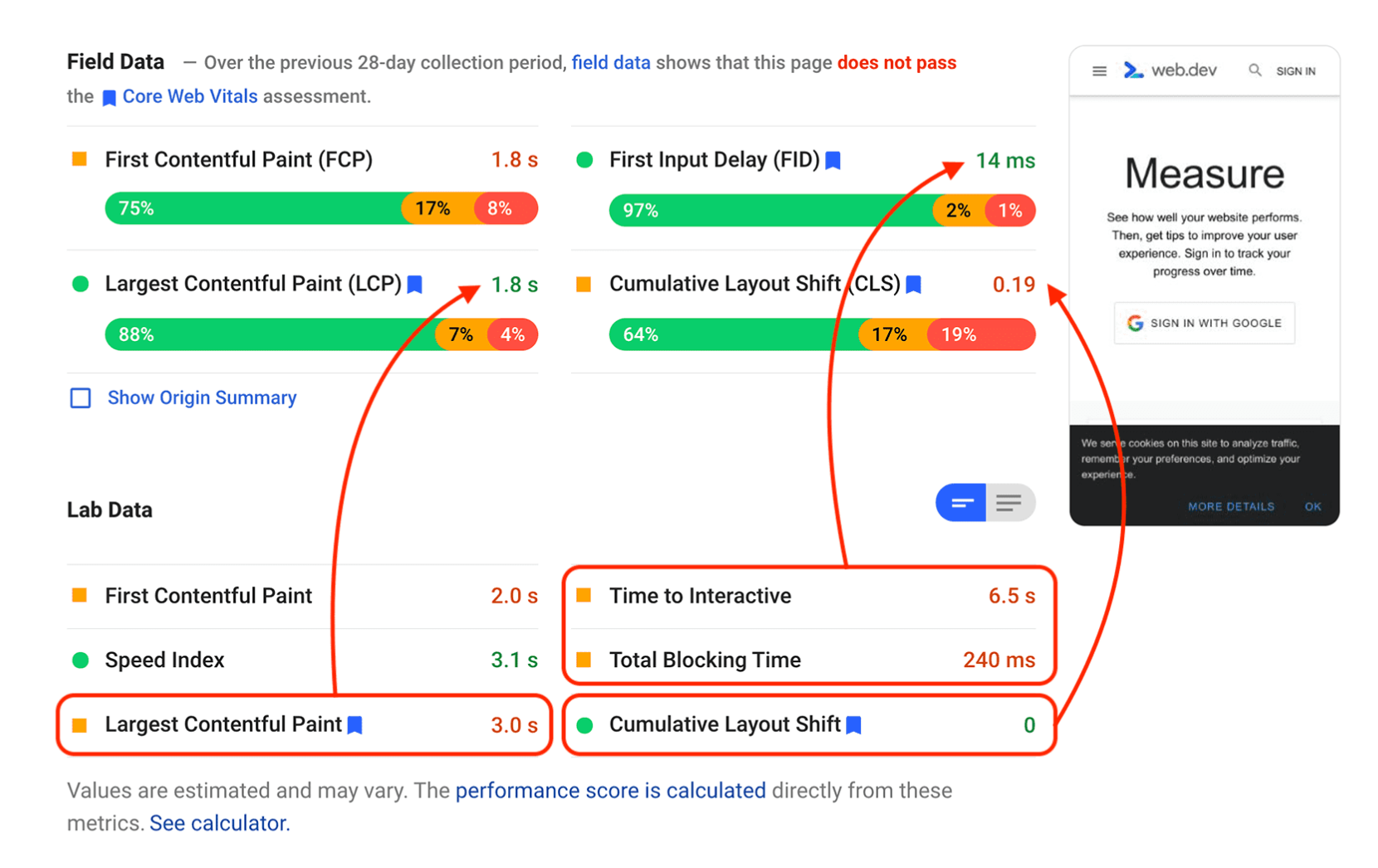
The score and the vitals measure different things. PageSpeed Insights runs a simulated lab test on one URL at one moment. Core Web Vitals are measured from real user sessions collected by Chrome over 28 days. A site can look fast in a test and still fail in the field. That gap is where most WordPress sites get stuck.
This guide covers what actually causes failures on WordPress — not just image size and caching, but theme structure, page builders, script load order, and dynamic content. And practical fixes that work, not just tools to run more tests with.
What Are Core Web Vitals?
Definition
Core Web Vitals are a set of three real-user performance metrics Google uses to evaluate the quality of a webpage’s loading, visual stability, and interactivity. They are: LCP (Largest Contentful Paint), CLS (Cumulative Layout Shift), and INP (Interaction to Next Paint). Google uses these as ranking signals under the Page Experience framework.
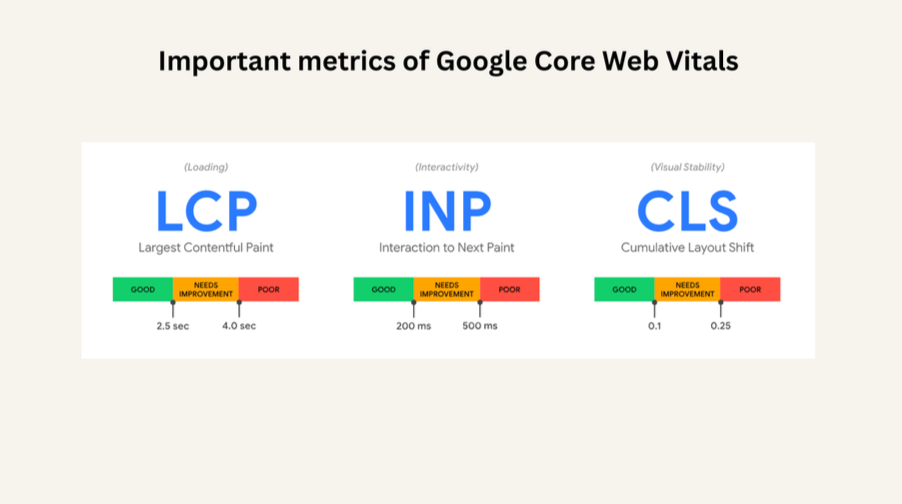
The three metrics each measure a different type of user experience problem:
| Metric | What It Measures | Good Threshold | Poor Threshold |
|---|---|---|---|
| LCP | How fast the main visible element loads | Under 2.5s | Over 4.0s |
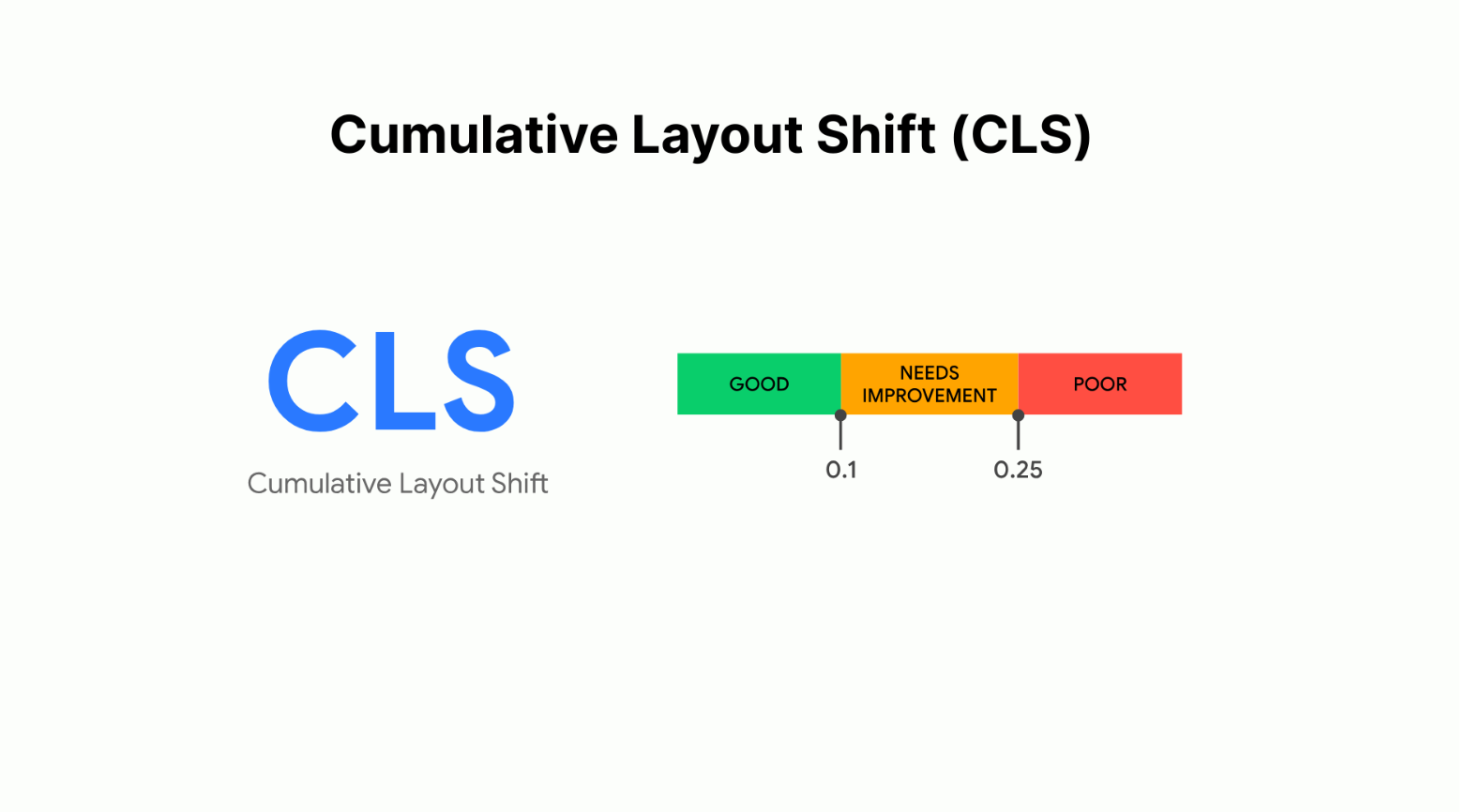
| CLS | How much the layout unexpectedly shifts | Under 0.1 | Over 0.25 |
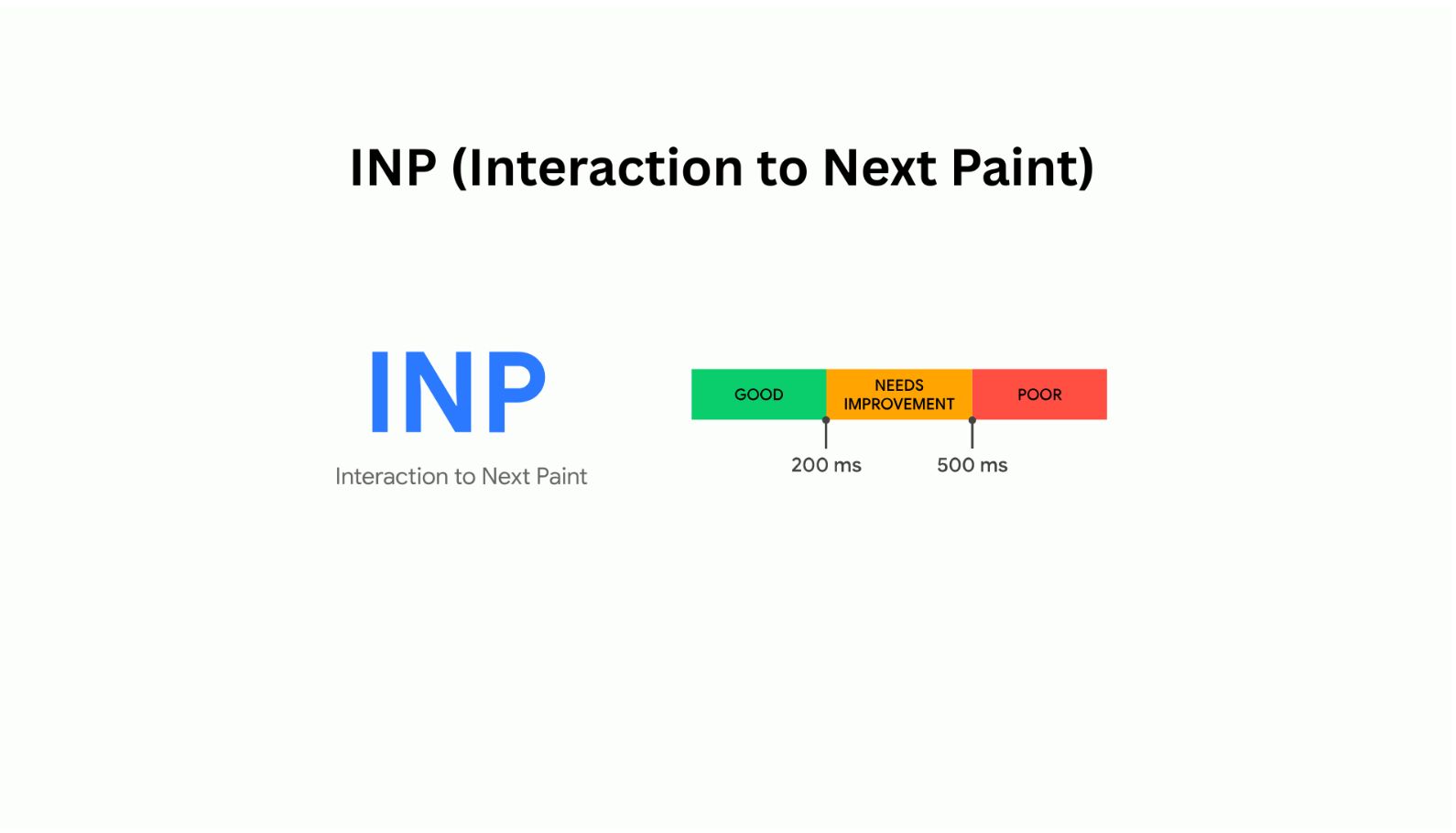
| INP | How fast the page responds to user input | Under 200ms | Over 500ms |
How Google Measures Core Web Vitals on WordPress Sites
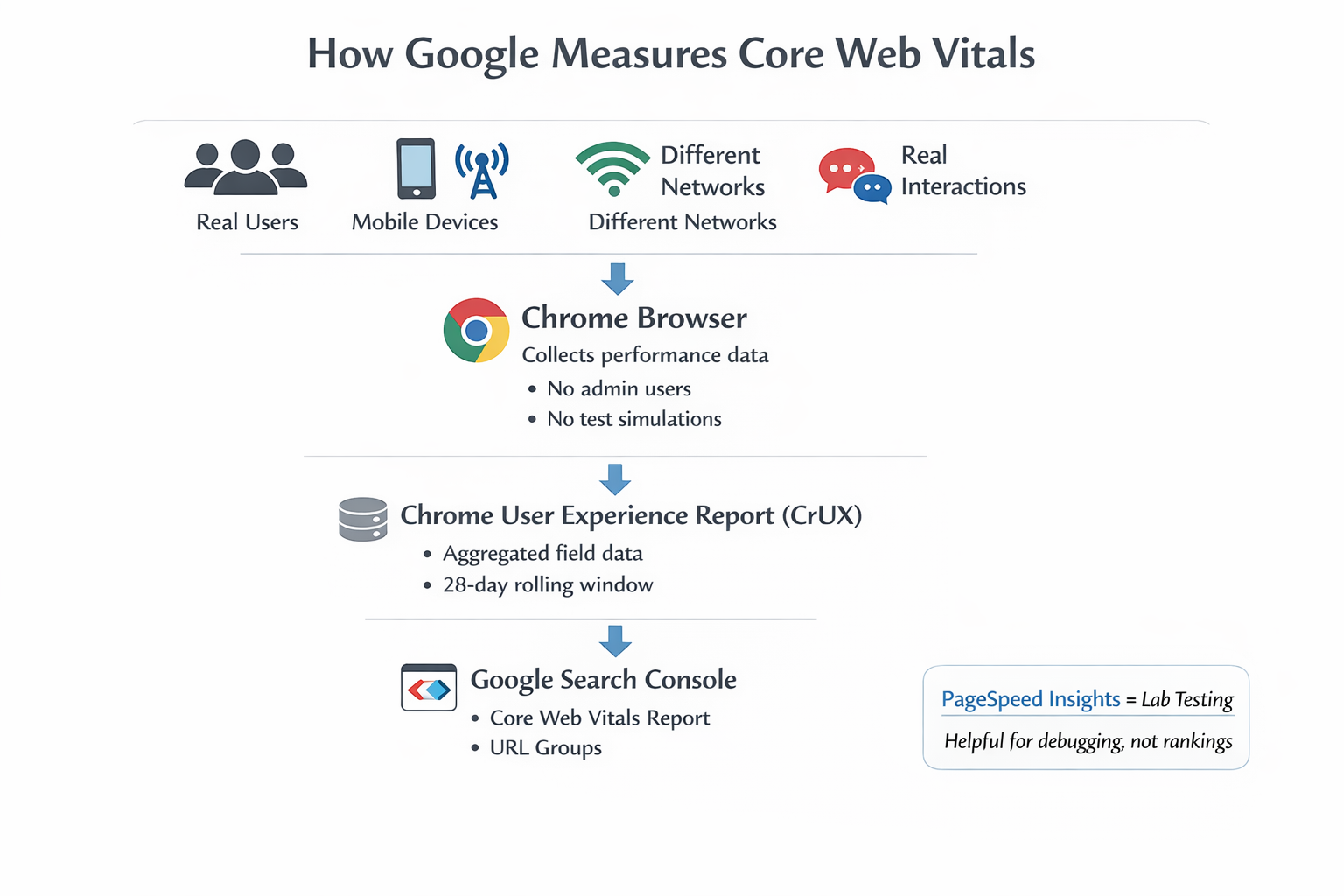
Google collects CWV data from real Chrome users through the Chrome User Experience Report (CrUX). Data aggregates over 28 days. This means two important things:
- Changes take 28 days to fully reflect. Fix your LCP today, but the GSC report will keep showing old data while the window rolls forward.
- Mobile data weights heavily. Most Chrome users accessing your site on mobile means your mobile CWV score drives most of the ranking signal. A desktop score that passes does not save a failing mobile score.
- Low-traffic URLs may not have CrUX data. Google falls back to domain-level data for pages with too few real user sessions to measure.
Important
PageSpeed Insights and GTmetrix run synthetic lab tests. They do not reflect what real users experience. Always diagnose using Google Search Console’s Core Web Vitals report or the CrUX data in PageSpeed Insights (the field data section, not the lab data section). See how free Google SEO tools like GSC surface this data directly.
1. Largest Contentful Paint (LCP): The #1 WordPress Problem
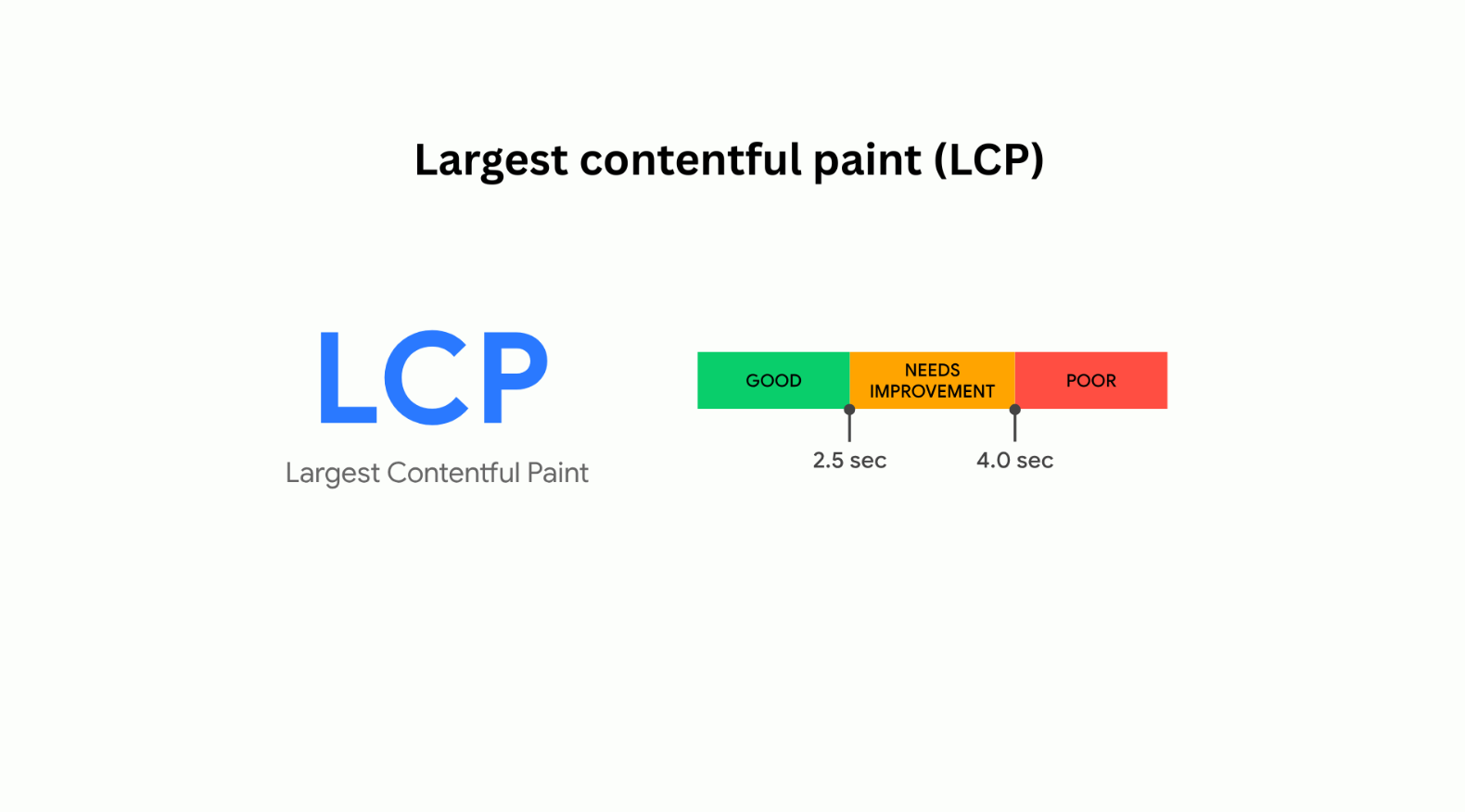
LCP measures how long it takes for the largest visible content element to render. On most WordPress sites, that element is the hero image, a banner, or the first H1 text block. If that element is slow, LCP fails.
What counts as the LCP element?
- The featured image or hero image at the top of the page
- A large text block (H1 or opening paragraph) when no image loads above the fold
- A background image set via CSS on a section element
- A video poster image
Real reasons LCP is slow on WordPress (beyond image size)
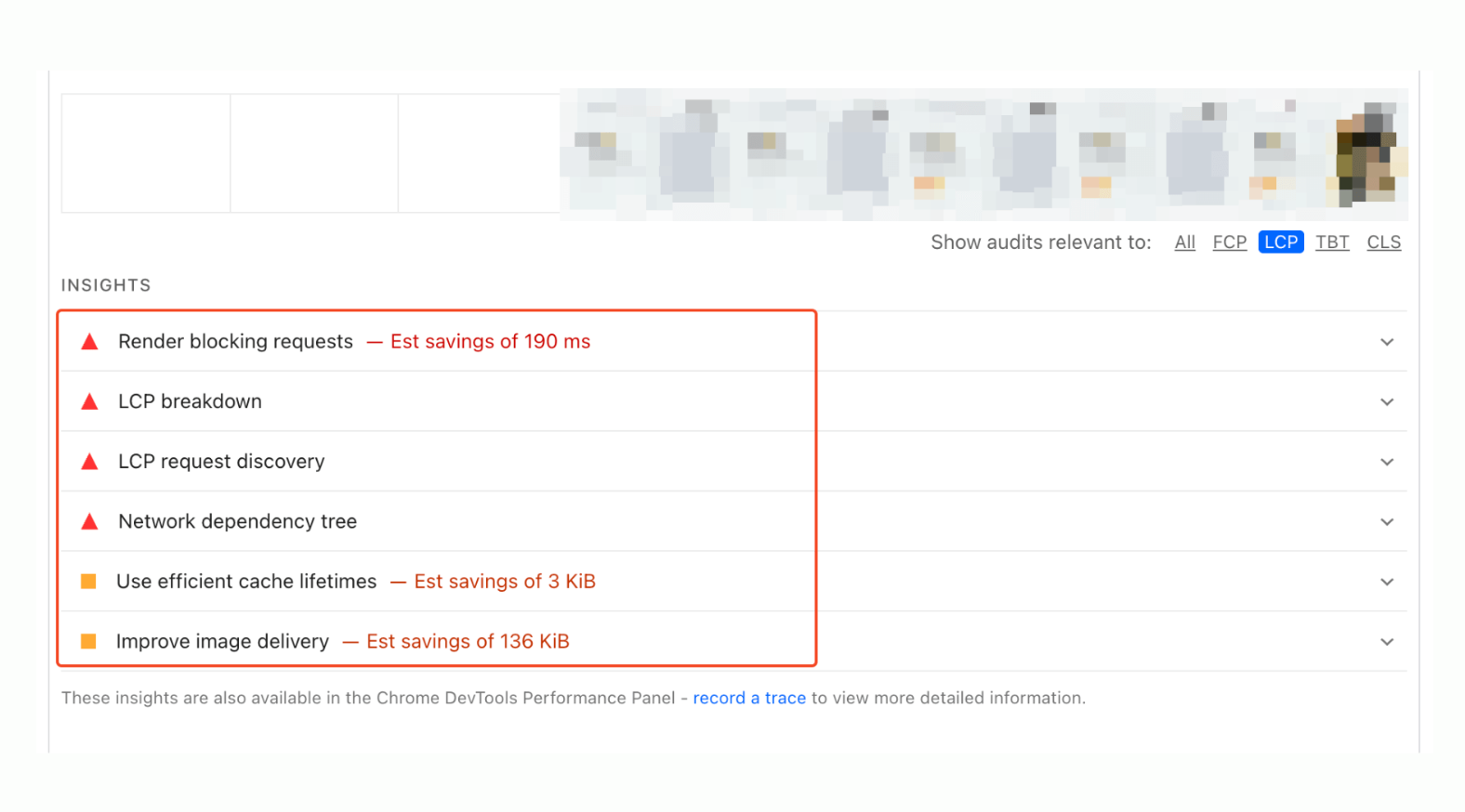
- No fetchpriority on the hero image. WordPress does not automatically add
fetchpriority="high"to the LCP image. The browser treats it the same as every other image and queues it accordingly. - Lazy loading applied to the LCP image. WordPress adds
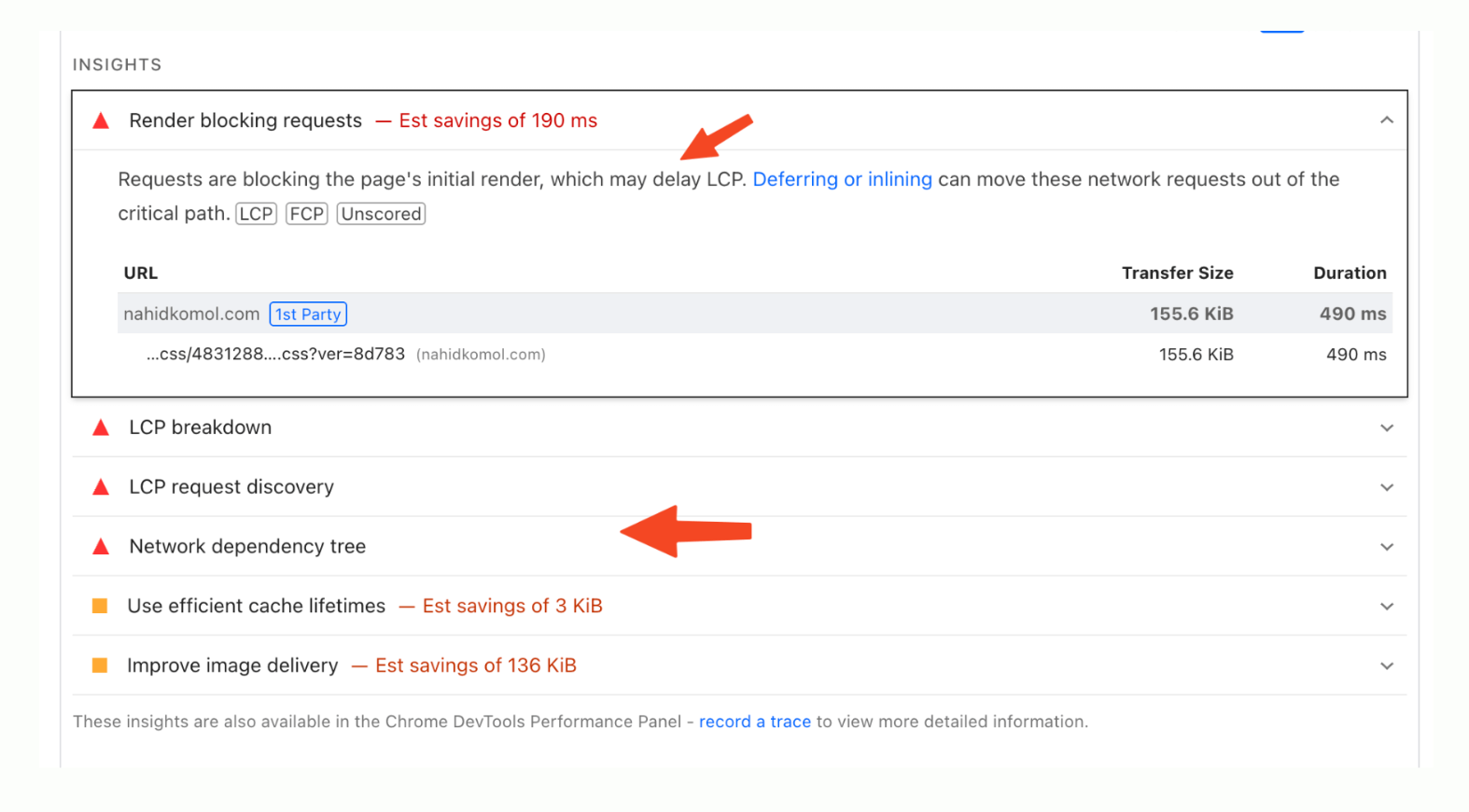
loading="lazy"to images by default. If that hits the above-fold image, the browser waits to load it until it is needed — which is exactly when it should already be loaded. - Render-blocking scripts and CSS. Large page builders (Elementor, Divi, WPBakery) load CSS and JavaScript that block the browser from rendering any content until they fully parse. Your hero image cannot display until that blocking finishes.
- Slow Time to First Byte (TTFB). If your server takes more than 600ms to respond, LCP cannot pass 2.5s no matter how optimized the image is. Hosting quality is the floor everything else sits on.
- Images not in CDN. Serving images from your origin server instead of a CDN edge node adds latency proportional to the distance between the user and your server.
How to fix LCP for your WordPress site
- Remove lazy loading from your LCP image. Add
loading="eager"andfetchpriority="high"to the hero image. In Gutenberg, you can do this with a snippet in functions.php. - Preload your LCP image. Add a
<link rel="preload">tag in your theme’s header for the above-fold image. This tells the browser to fetch it immediately, before it parses the full DOM. - Use WebP format. WebP files are 25-35% smaller than JPEG at equivalent quality. WordPress generates WebP versions natively as of version 6.1.
- Defer non-critical scripts. Move JavaScript that does not affect above-fold rendering to defer or async. Caching plugins like WP Rocket handle this with a toggle, but verify it does not break your site’s functionality.
- Upgrade hosting if TTFB is over 600ms. No frontend optimization compensates for a slow server. TTFB is measured at the network level before any assets load.
2. Cumulative Layout Shift (CLS): Why “Optimized” Sites Still Fail
CLS measures how much visible content moves unexpectedly during page load. A score above 0.1 is “needs improvement.” Above 0.25 is “poor.” The frustrating thing about CLS is that it often survives an optimization pass because the causes are structural, not something a caching plugin touches.
What causes CLS on WordPress (real cases)
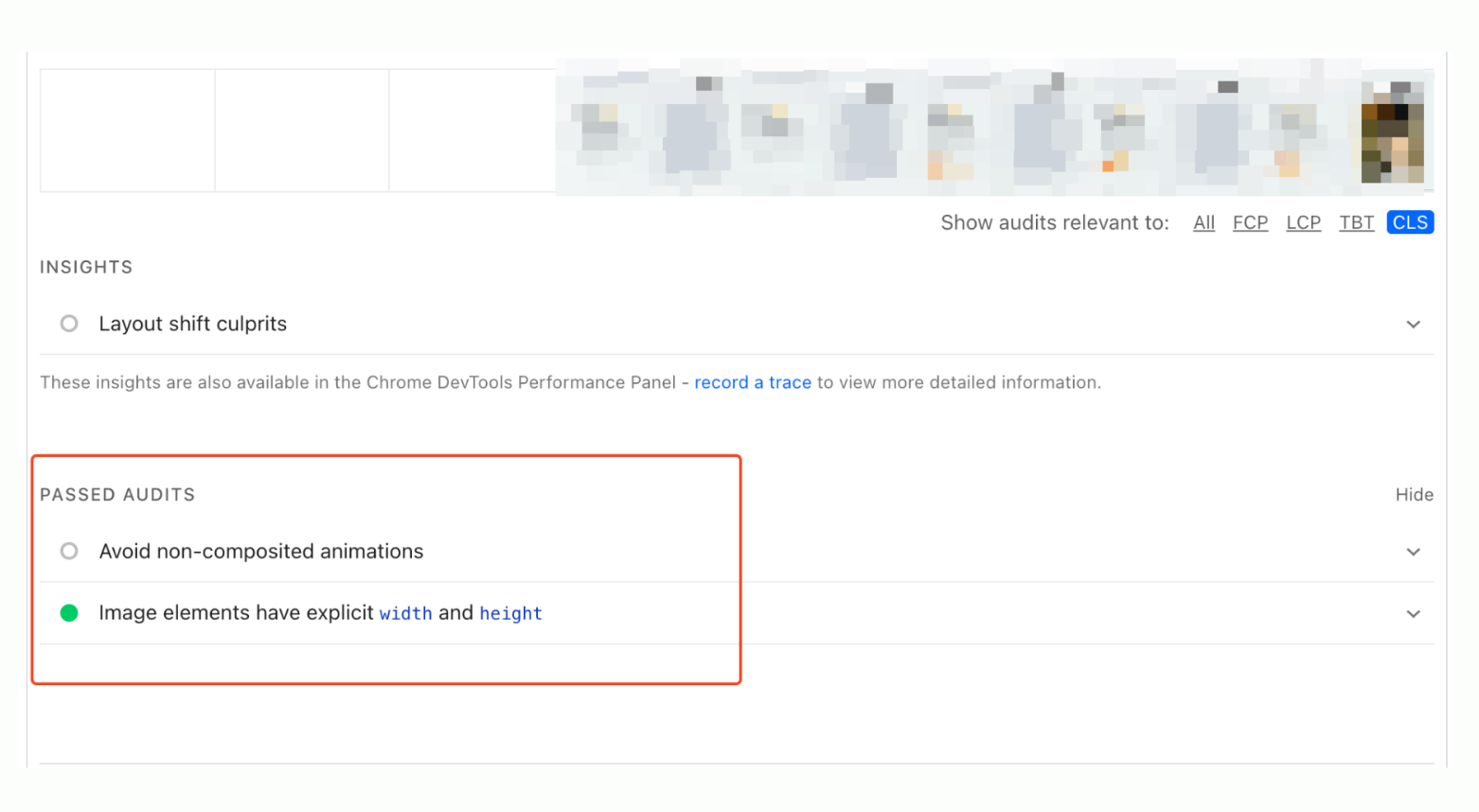
- Images without defined width and height attributes. If the browser does not know an image’s dimensions before it loads, it cannot reserve space for it. When the image loads, everything below shifts down.
- Web fonts loading late. When a fallback font renders first and a larger web font replaces it, text reflows. This is called FOUT (Flash of Unstyled Text) and it causes measurable CLS.
- Ads, embeds, and banners injected without reserved space. A cookie consent banner that pushes content down, an ad that loads after the page renders, or a chat widget that appears in the corner and shifts a sticky footer — all of these contribute to CLS.
- Sliders and carousels changing dimensions. Many WordPress sliders load with one height, then animate to a different height as the first slide initializes. That height change is recorded as layout shift.
- Elementor and WPBakery section heights. Page builder sections that rely on JavaScript to calculate and set height after render cause layout shifts before the script runs.
How to fix CLS the right way
- Add width and height to every image. WordPress sets these automatically on images inserted via the media library. Check that your theme or page builder is not stripping these attributes when it renders images.
- Preload key web fonts. Add
rel="preload"for your primary body font so it is ready before first render, eliminating the fallback-to-actual-font swap. - Reserve space for ads and dynamic elements. Use CSS
min-heighton ad containers so the layout does not shift when the ad loads. - Replace sliders with static hero sections. Sliders are one of the highest CLS contributors in WordPress. A well-designed static hero with a strong image and clear CTA performs better for conversions and CWV.
- Set explicit aspect ratios on video embeds. Use the CSS
aspect-ratioproperty on iframes to prevent layout shift when YouTube or Vimeo embeds load.
3. INP (Interaction to Next Paint): The Metric Most WordPress Blogs Ignore
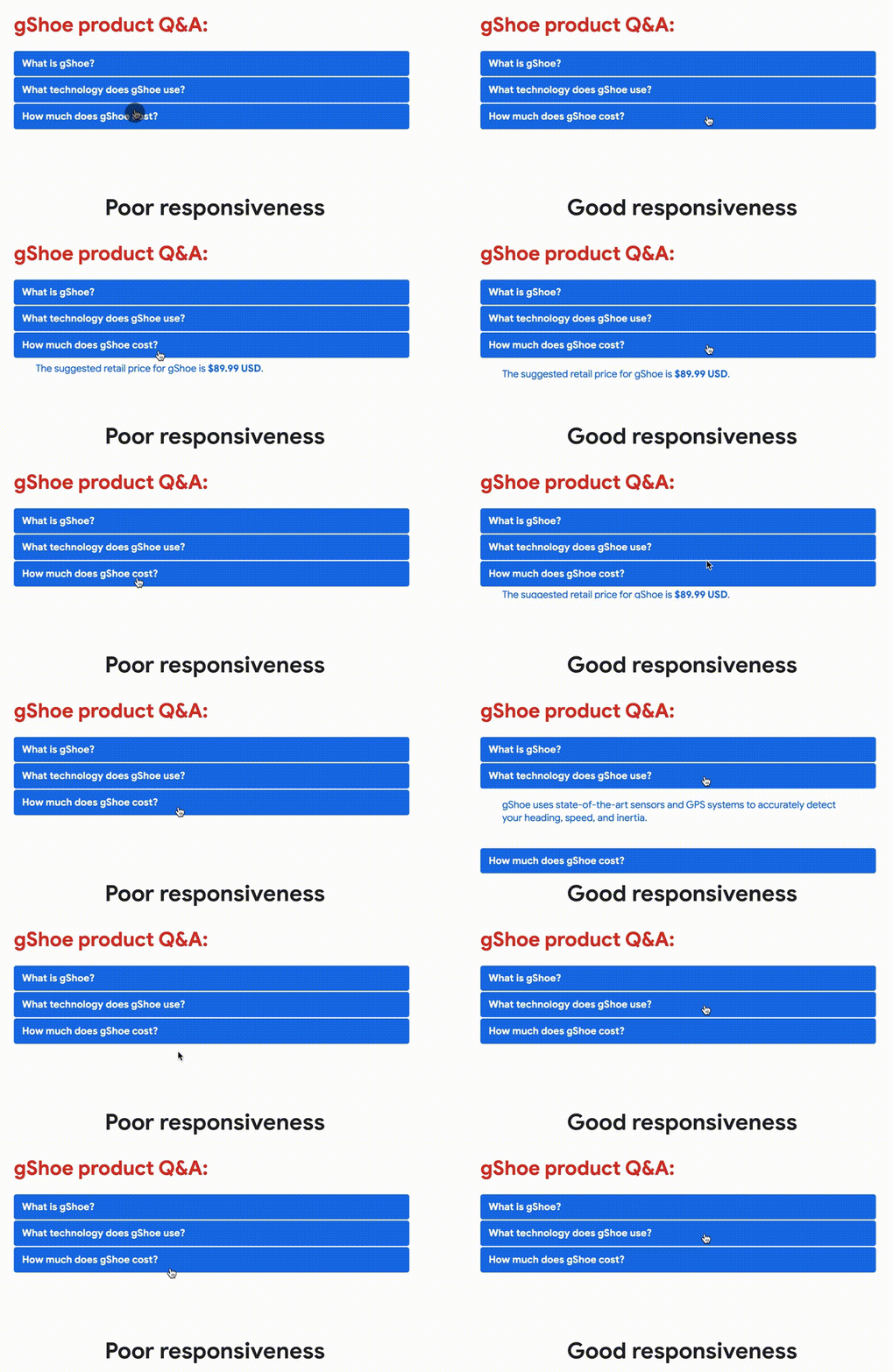
INP replaced FID (First Input Delay) as a Core Web Vital in March 2024. FID only measured the delay on the first interaction. INP measures the responsiveness of every interaction throughout the entire session — clicks, taps, key presses — and reports the worst-performing one.
For most content blogs and landing pages, INP is naturally good because there are not many interactions. For WooCommerce stores, pages with heavy JavaScript, and sites with comment sections or search functionality, INP is where CWV compliance breaks down.
Common INP problems in WordPress
- Long JavaScript tasks on the main thread. Any JS task that runs for more than 50ms blocks the browser from responding to user input. Page builders, analytics stacks, and comment widgets are common culprits.
- Event handlers attached to too many elements. A click handler attached to the document root that checks conditions for every click creates unnecessary processing on every interaction.
- WooCommerce cart and checkout scripts. Add-to-cart buttons, quantity selectors, and coupon code fields all trigger JavaScript. Heavy WooCommerce pages are the most common source of poor INP scores on WordPress.
- Third-party scripts (chat, personalization, A/B tools). Hotjar, Intercom, Optimizely, and similar tools run persistent JavaScript that competes for main thread time on every user interaction.
How to improve INP without breaking features
- Break long tasks into smaller chunks. Use
setTimeoutor the scheduler API to split large JavaScript functions so the browser has time to process input between chunks. - Load third-party scripts after interaction. Delay Hotjar, Intercom, and other non-critical tools until the user first interacts with the page (scroll, click, or keypress). This significantly reduces main thread competition during initial load.
- Audit and remove unused plugins. Each active WordPress plugin that loads JavaScript on the frontend adds to the total main thread workload. Deactivate anything not contributing visible value to your site’s users.
- Use a performance-focused plugin for script management. WP Rocket, Perfmatters, and Asset CleanUp Pro let you load scripts only on the specific pages that need them, rather than globally.
The Theme Factor: Why Your WordPress Theme Matters More Than You Think
No amount of caching, CDN, or plugin optimization fully compensates for a theme that generates bloated HTML, loads unnecessary CSS, or defers rendering until JavaScript initializes the layout. Themes are the foundation — and a bad one makes every other optimization harder.
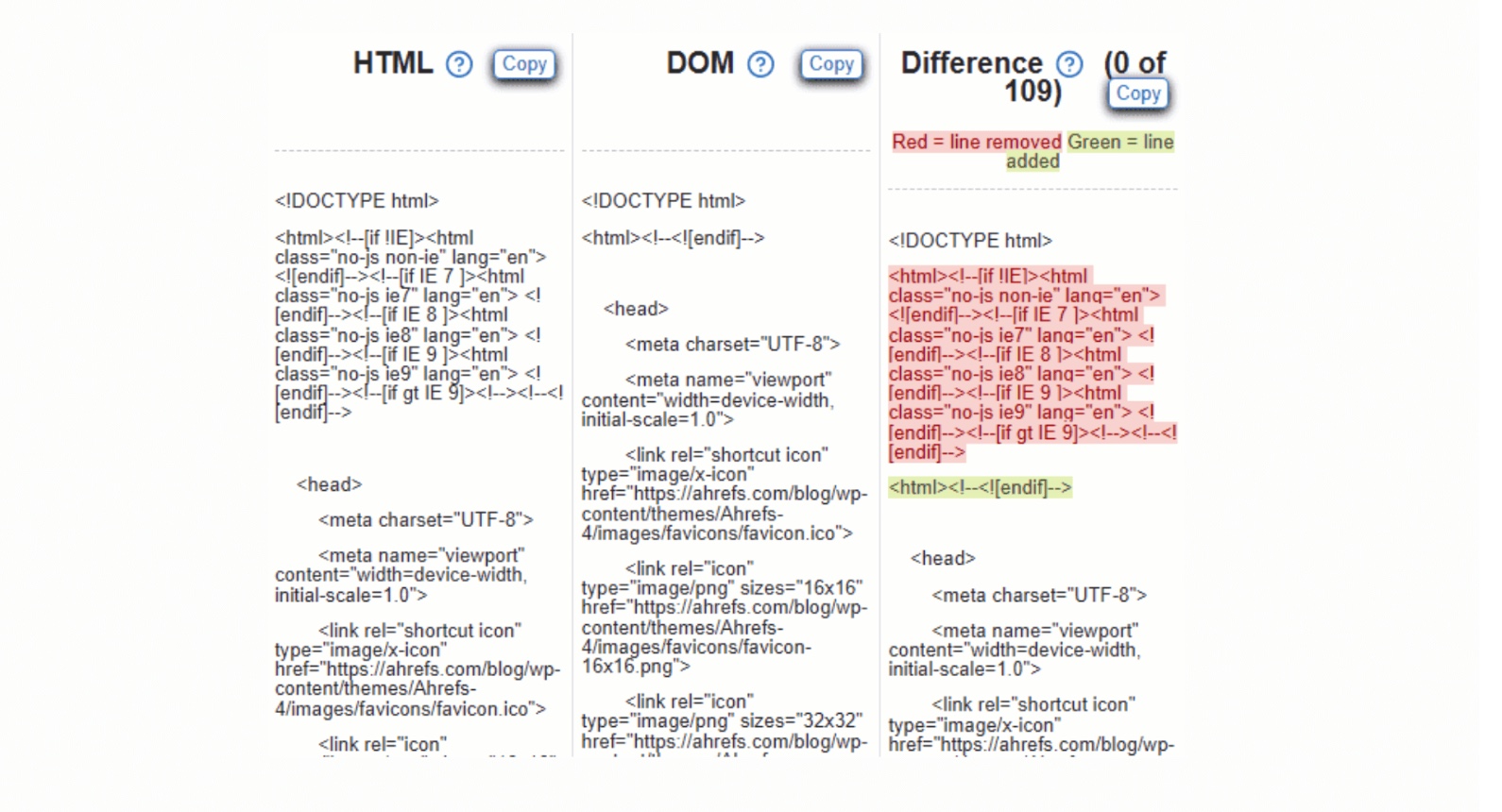
How theme markup affects Core Web Vitals
- Nested div structures inflate DOM size. Page builders produce deeply nested HTML. A large DOM (over 1,500 nodes) takes longer for the browser to parse and render, directly affecting LCP and INP.
- Unused CSS loads globally. Many premium themes load their full stylesheet on every page. A stylesheet with 200KB of CSS that applies to 5KB of actual page content is pure waste from a rendering perspective.
- Font loading handled poorly at the theme level. If the theme loads Google Fonts via a standard link tag rather than preloading them, font-related CLS and LCP delays are baked in by default.
Why switching themes often fixes CWV immediately
Lightweight themes like GeneratePress, Kadence, Blocksy, and Astra are architected for performance by default. They produce minimal DOM nodes, load small default stylesheets, handle fonts correctly, and do not require heavy JavaScript to initialize the layout. Sites switching from a bloated premium theme to one of these frequently see LCP improve by 1-2 seconds without any other changes.
Watch out
Elementor, Divi, and WPBakery add significant JavaScript and CSS overhead by design. If you are using one of these page builders and struggling with CWV, the builder itself may be the ceiling on how far optimization can take you. Consider rebuilding key pages in native Gutenberg blocks or with a lightweight builder like Bricks or Oxygen if CWV compliance is a priority.
Core Web Vitals Tools: What to Use and What to Trust
Not all CWV tools show the same data and confusing them leads to wrong diagnoses. Here is how each tool fits into the workflow:
Google Search Console
USE FOR: Diagnosis and tracking
Shows real user CrUX data grouped by URL. This is the source of truth for whether your site passes or fails. Use it to identify which pages have the most “poor” URLs.
PageSpeed Insights
USE FOR: Debugging specific URLs
Shows both field data (real users, top of page) and lab data (simulated, bottom of page). Read the field data first. Use lab data to debug specific issues — not to judge overall performance.
Chrome DevTools (Performance tab)
USE FOR: Deep debugging
Shows the waterfall, long tasks, main thread activity, and rendering timeline. Use when you need to identify which specific script or element is causing an LCP or INP problem.
GTmetrix / WebPageTest
USE FOR: Supplementary testing only
Useful for waterfall analysis and filmstrip views. Do not use scores from these as a proxy for CWV compliance — they run synthetic tests that do not match Google’s field data methodology.
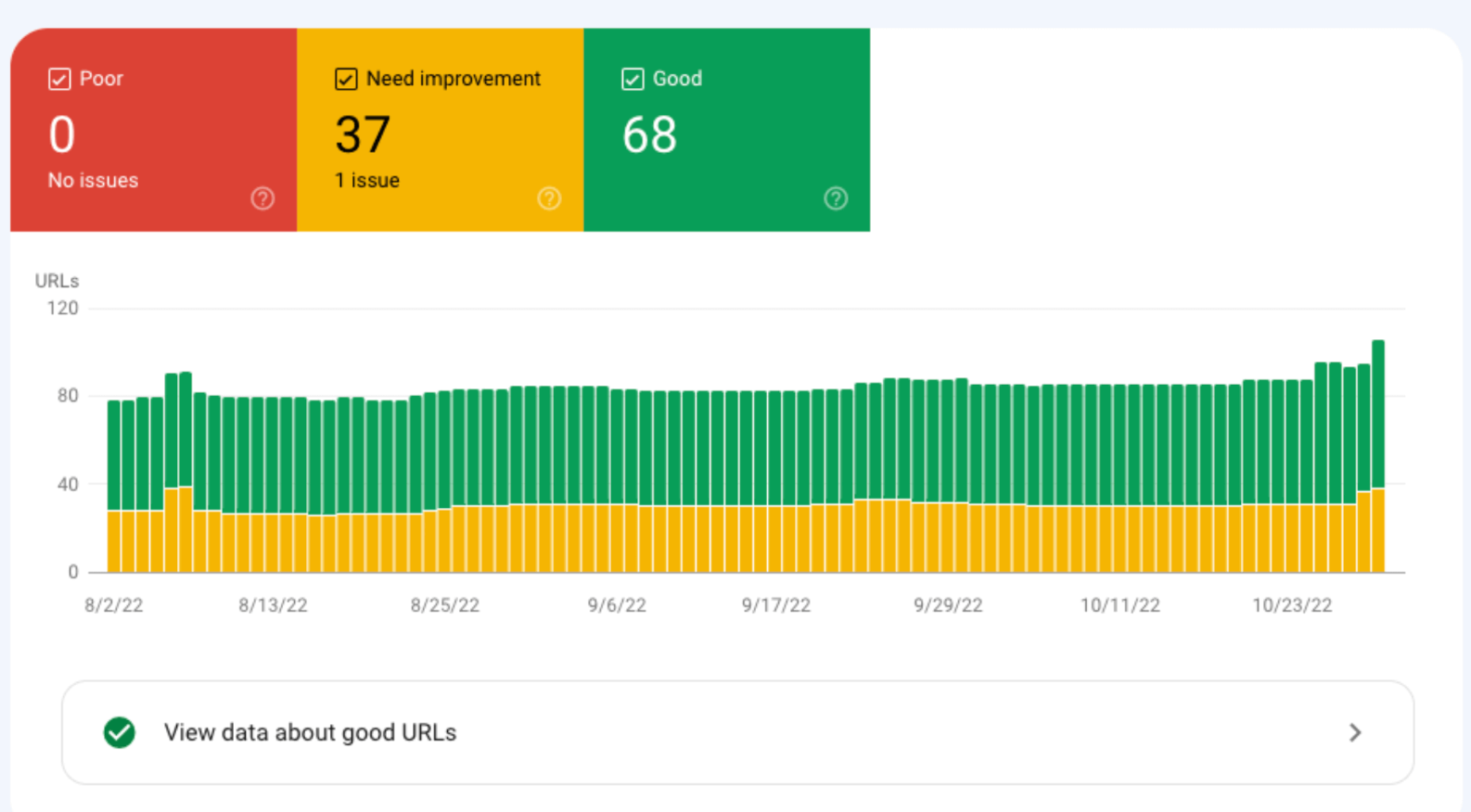
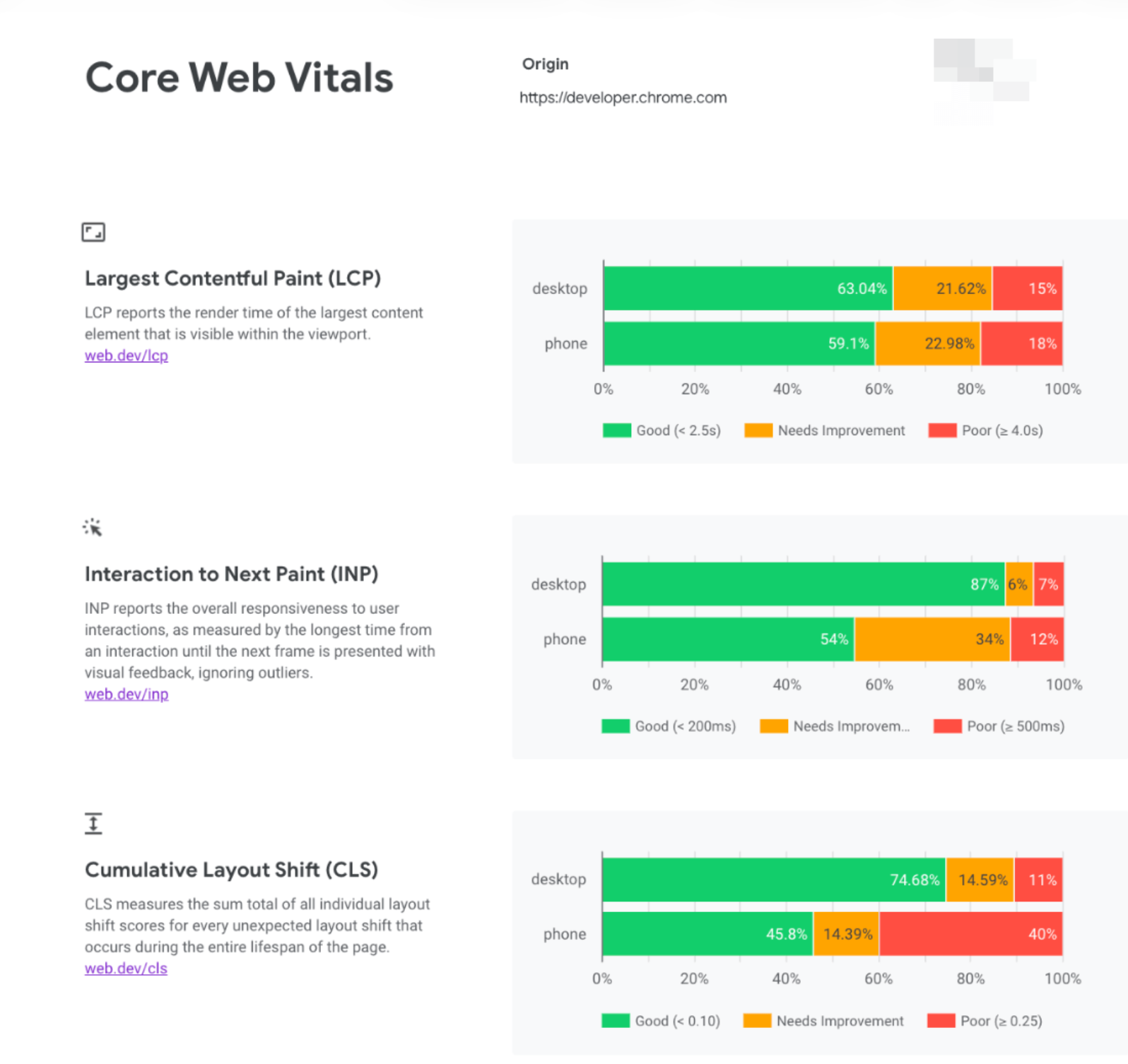
The fastest workflow: Start in Google Search Console to identify failing URLs. Open those specific URLs in PageSpeed Insights to see field data and diagnostics. Use Chrome DevTools to investigate the specific elements flagged in the diagnostics. You can connect your GSC data directly to your analytics workflow — I cover exactly how in this GA4 and GSC MCP integration guide.
How Hosting, CDN, and Server Setup Affect Core Web Vitals
TTFB (Time to First Byte) is the foundation every Core Web Vital sits on. If your server takes 1.5 seconds to respond, LCP physically cannot pass 2.5 seconds no matter what else you optimize. Hosting is not a detail — it is the ceiling.
- TTFB under 200ms. Managed WordPress hosts (Kinsta, WP Engine, Cloudways) consistently achieve this. Shared hosting on budget plans typically cannot.
- Server-side caching enabled. Object caching (Redis or Memcached) prevents WordPress from rebuilding pages from the database on every request. This alone can cut TTFB by 300-500ms on dynamic sites.
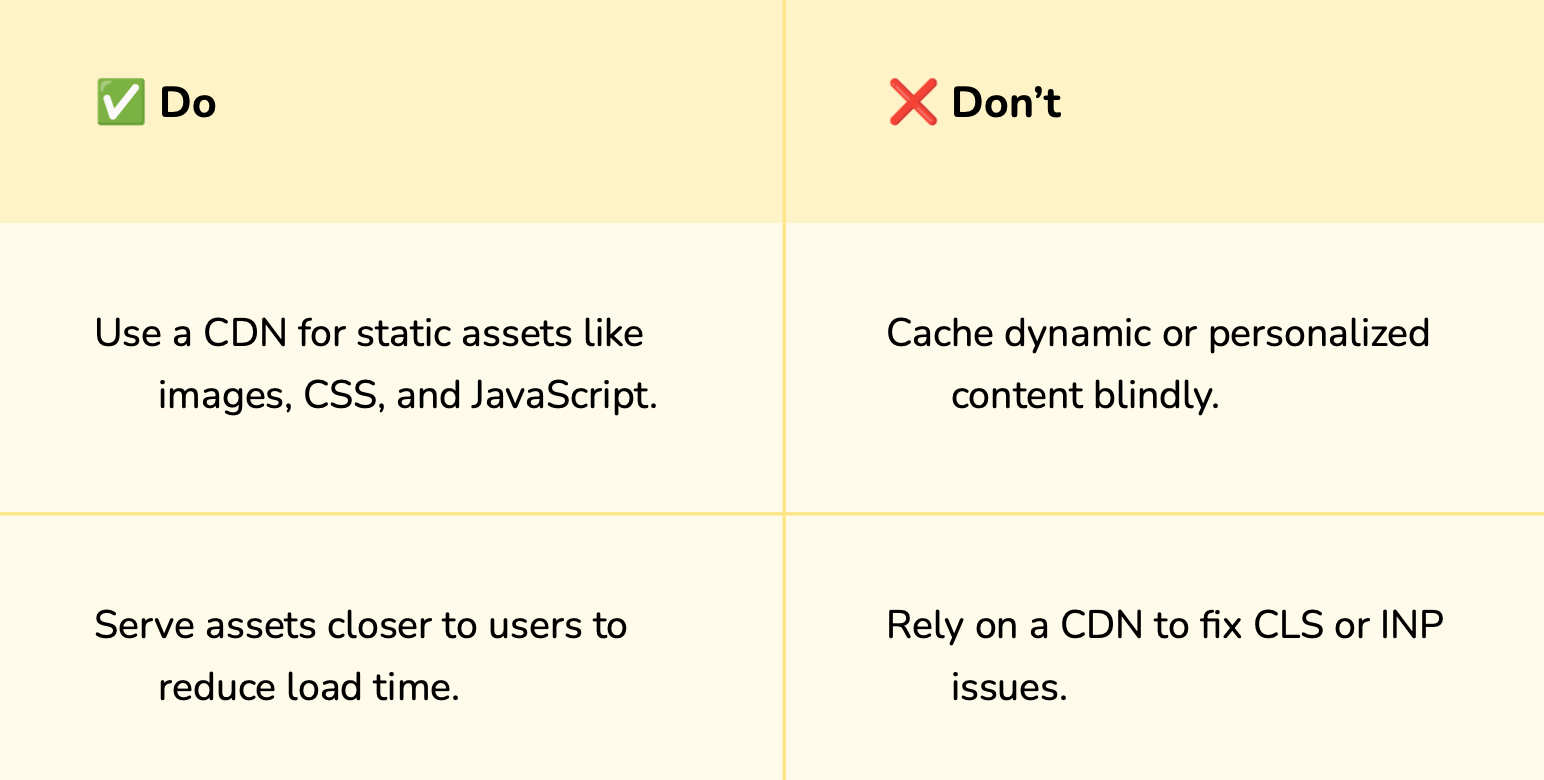
- CDN serving static assets. Images, CSS, JavaScript, and fonts should serve from a CDN edge node close to the user, not from your origin server. Cloudflare’s free plan covers this for most WordPress sites.
- HTTP/2 or HTTP/3 enabled. HTTP/2 allows multiple requests over a single connection. HTTP/3 reduces connection setup latency further. Most modern hosts and CDNs support both — verify in DevTools under the Network tab (Protocol column).
- PHP 8.2+. WordPress performance improvements since PHP 7.4 are significant. Running PHP 8.2 on the same hardware can reduce server response time by 15-25% over PHP 7.4.
Worth checking
Good hosting also reduces security surface area. A faster server with proper caching is also a more stable server — fewer database calls mean less exposure to certain attack vectors. I cover the performance-security overlap in more detail in the WordPress security guide.
Common Core Web Vitals Mistakes WordPress Site Owners Make
- Chasing the PageSpeed score instead of the field data. A 90+ score in PageSpeed lab results does not mean passing CWV in GSC. They measure different things. Always verify against real user data.
- Applying lazy loading to above-fold images. WordPress adds lazy loading to images by default. If this hits your hero or featured image, it directly damages LCP. Always exclude the first above-fold image from lazy loading.
- Installing too many optimization plugins. Multiple caching plugins conflict. Multiple image optimization plugins double-process images. One caching plugin plus one image optimizer is the correct configuration for most WordPress sites.
- Expecting changes to appear in GSC within days. CrUX data takes 28 days to fully roll over. Fix something today and then wait a full month before measuring whether the fix worked in the field data.
- Ignoring mobile scores. If your mobile CWV fails and desktop passes, your site fails CWV for Google’s purposes. Mobile is where most Chrome user sessions happen, which is what CrUX measures.
- Fixing the homepage only. Core Web Vitals apply to every URL on your site. GSC groups failures by URL pattern (article pages, product pages, category pages). Fix the template, not just the homepage.
Frequently Asked Questions About Core Web Vitals
Do Core Web Vitals directly affect Google rankings?
Yes, as a tiebreaker signal within the Page Experience framework. Google confirmed CWV is a ranking signal, but content relevance and authority carry more weight. In practice, if two pages are equally relevant and authoritative, the one with better CWV scores ranks higher. For competitive keywords, fixing CWV can be the difference between position 5 and position 3. For Google AI Mode, page experience signals are increasingly factored into which pages get cited in AI-generated answers.
Why does my site pass PageSpeed Insights but fail in Google Search Console?
PageSpeed Insights lab data runs a simulated test from a controlled environment. Google Search Console shows CrUX data from real Chrome users on their actual devices and network connections. Real users have slower devices, slower networks, browser extensions, and active tabs competing for memory. A site that passes in a controlled lab test often fails in real-world conditions because lab tests do not capture those variables.
How long does it take for Core Web Vitals to improve after fixes?
The CrUX data window is 28 days. After you make a fix, Google begins collecting new session data immediately, but the old data continues to weight the report until the 28-day window fully rolls over to reflect the new performance. Expect 4 to 6 weeks from the fix date before you see a reliable improvement in your GSC Core Web Vitals report.
Is it possible to fix Core Web Vitals using plugins only?
Partially. Plugins like WP Rocket, NitroPack, and Perfmatters can address image optimization, script deferral, caching, and basic CSS cleanup — all of which improve LCP and CLS meaningfully. But structural issues (page builder bloat, theme DOM size, server response time) require changes plugins cannot make. For most WordPress sites, a plugin handles 60-70% of CWV fixes. The remaining issues require direct code changes or infrastructure upgrades.
What should I fix first to improve Core Web Vitals on WordPress?
Fix in this order: (1) TTFB — if your server response is slow, everything else is limited. Check hosting quality first. (2) LCP image — remove lazy loading from the above-fold image and add fetchpriority=”high”. This is the single highest-impact change for most WordPress blogs. (3) CLS from images without dimensions — set explicit width and height on every image. (4) Render-blocking scripts — defer or async JavaScript not needed for initial render. (5) INP — investigate and remove or delay heavy third-party scripts.
Can a low-traffic WordPress site pass Core Web Vitals?
Yes, but it may not have enough CrUX data for URL-level reporting. Google requires a minimum number of real user sessions to generate field data for a specific URL. If a page does not meet that threshold, Google falls back to domain-level or similar-page data. For low-traffic sites, focus on passing PageSpeed Insights field data and ensure the technical fundamentals are solid so when traffic grows, field data reflects a compliant experience.
Core Web Vitals Are a System, Not a Setting
The mistake most site owners make is treating Core Web Vitals as a checklist — run the test, fix what is flagged, move on. In practice, CWV reflects how your entire stack performs together: hosting, theme, page builder, plugins, images, scripts, and fonts all interact.
Fix the LCP image and INP might expose itself. Fix CLS and a new plugin adds a banner that breaks it again. The work is iterative because the site is live and things change.
The practical approach: monitor GSC’s Core Web Vitals report on a schedule, connect it to your analytics workflow, and treat it as ongoing maintenance rather than a one-time project. Connecting GSC to Claude via MCP is one way to make that monitoring automatic rather than manual. You can also use the free Google SEO tools suite — Search Console, PageSpeed Insights, and Lighthouse — to build a repeatable audit process that keeps CWV compliance on your radar without requiring a full audit every month.

Nahid Komol
Nahid Komol is a product marketer and GTM strategist specializing in WordPress, SaaS, and AI-integrated growth (AEO, AIO, GEO). With 10+ years of hands-on experience at brands like FunnelKit, FlyWP, and weDevs, he brings deep expertise in content strategy, product positioning, user acquisition, and full-funnel marketing.He's led campaigns generating $100K in sales, grown organic traffic by 70%, and ranked 500+ articles on Google, and is now building AI agent workflows that automate core marketing operations at scale.When he's not crafting strategies or engineering prompt systems, you'll find him exploring sci-fi, composing music, or capturing the quiet poetry of nature through his lens.
Comments are closed