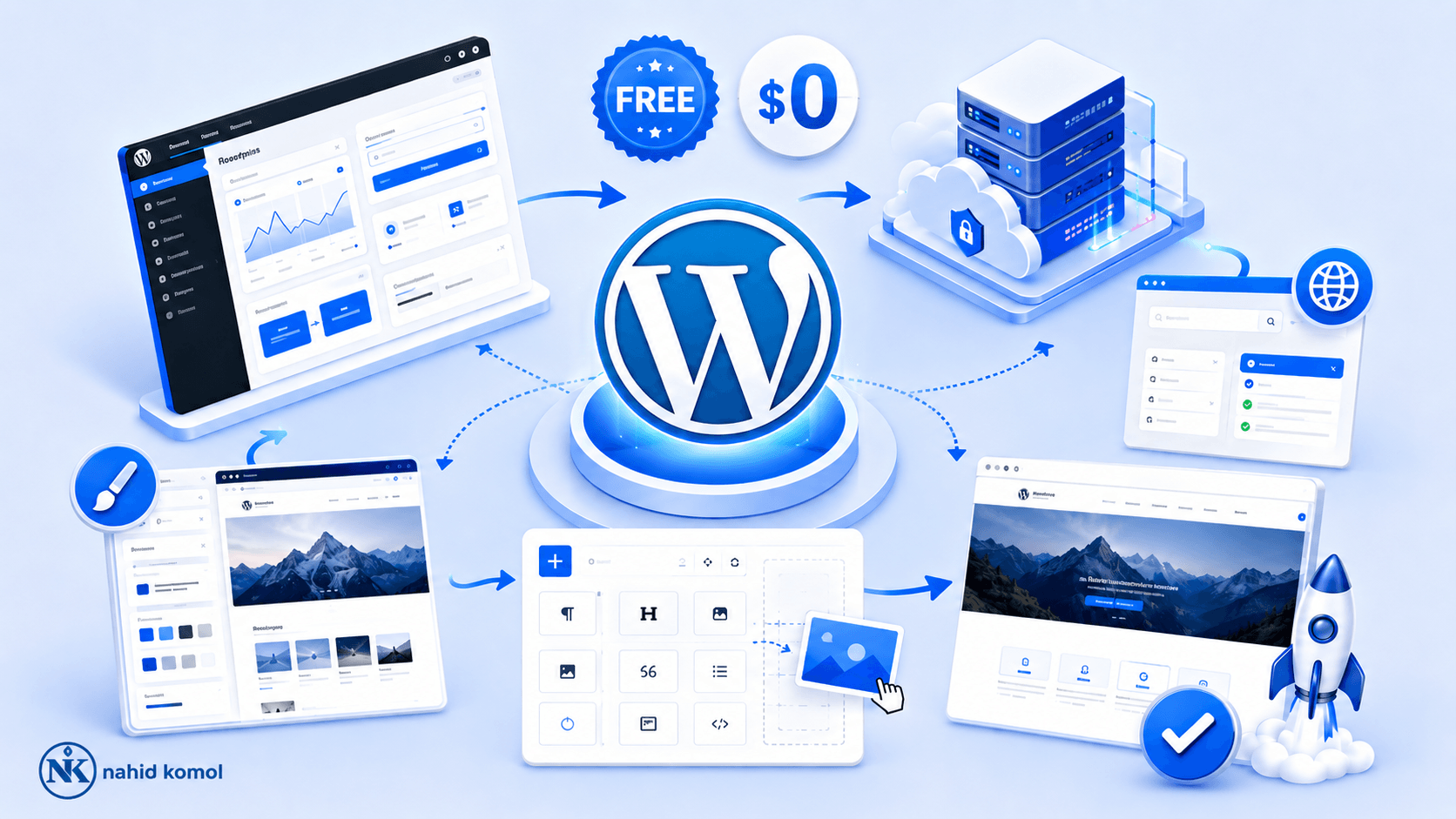
How to Create a WordPress Site for Free in 5 Steps (2026)
WordPress 7.0 just launched. The core software is still free. And getting a site live still takes under two hours. This guide walks you through the exact steps, no developer required.
To create a WordPress site for free: download WordPress from WordPress.org, pick a hosting provider (shared plans start at $1.99/month), install WordPress via one-click installer, choose a free theme, and publish your first page. The software is always free, you pay only for hosting and a domain name (~$50–100/year total).
- Why WordPress Is Still the Best Starting Point in 2026
- What You Actually Need Before You Start
- Step 1: Choose a Domain Name and Hosting Plan
- Step 2: Install WordPress (One Click, Not FTP)
- Step 3: Configure Your Core Settings
- Step 4: Choose and Install a Free Theme
- Step 5: Create Your Essential Pages and First Post
- 5 Plugins Worth Installing First
- FAQ
Why WordPress Is Still the Best Starting Point in 2026
Free website builders exist. Plenty of them. But most of them make a quiet trade: you get the builder for free, they get their branding on your site, your data locked in their system, and an exit cost that grows with every month you stay.
WordPress doesn’t do that. The software is open source, free to download, free to modify, and completely yours. You pay for hosting and a domain. That’s the full cost. Everything else is in your control.
That 41.9% figure is worth unpacking. WordPress has seen a modest decline from its 43.2% peak in late 2025 as competition from Wix, Shopify, and Squarespace has grown. But its closest competitor, Shopify still sits at just 5.1%. Among websites using a known CMS, WordPress commands 59.4% of the market. The platform is not going anywhere.
What’s new in 2026: WordPress 7.0 “Armstrong” launched on May 20, 2026. It brings native AI integration into the core, a redesigned admin dashboard, and the beginning of Phase 3 of the Gutenberg roadmap. If you’re starting a site today, you’re starting on a meaningfully more capable platform than even a year ago.
What You Actually Need Before You Start
The biggest confusion in “free WordPress” guides is this: the software is free, but two things aren’t. Getting clear on the real cost before you start saves the frustration of hitting a paywall mid-setup.
Domain Name
Your web address, yoursite.com. Roughly $10–15/year. Many hosts include one free for the first year on annual plans.
Web Hosting
Where your site files live. Shared hosting starts at $1.99/month intro pricing. Budget $30–60/year for year one realistically.
WordPress Software
Free. Always. Download from WordPress.org or let your host install it via one-click. No licensing fee, ever.
Theme + Plugins
Thousands of free options in the WordPress repository. You don’t need to spend anything here to launch something solid.
Realistic total for year one: $50–100. That’s domain plus shared hosting, no premium add-ons required.
Choose a Domain Name and Hosting Plan
Picking Your Domain Name
Your domain is your address online and your brand’s first impression. A few rules that actually matter:
- Stick to .com if available. It carries the most default trust with visitors.
- Avoid hyphens, they’re hard to say aloud and look spammy in some contexts.
- Keep it under 15 characters where possible. Shorter is easier to share and remember.
- Don’t register anything that overlaps with a known brand. Legal risk isn’t worth the clever wordplay.
Which Hosting Provider in 2026?
For a first WordPress site, shared hosting covers everything you need. Here’s how current 2026 intro pricing compares:
Bluehost is officially recommended by WordPress.org, includes a free domain on annual plans, and one-click WordPress installation. Renewal at $8.99/month is among the more reasonable in the category. Good pick for a first site.
Hostinger has better raw performance scores in 2026 testing and a faster onboarding experience with its AI assistant. If you want speed over brand familiarity, it’s the stronger technical choice at the budget tier.
SiteGround performs well but that $17.99/month renewal is aggressive. Fine if you know you’ll migrate after year one.
Install WordPress (One Click, Not FTP)
Old WordPress guides walk you through FTP, cPanel, MySQL databases, and FileZilla. Ignore all of that. Every major host in 2026 offers a one-click WordPress installer. It does the exact same thing in a fraction of the time, and you don’t need to touch a single config file.
How the One-Click Installer Works
- Log into your hosting control panel (cPanel, hPanel, or the host’s custom dashboard).
- Find the WordPress installer, usually under “Website,” “WordPress,” or “Softaculous.”
- Click “Install Now” or “Install WordPress.”
- Select your domain from the dropdown.
- Set your admin username, password, and email. Use a strong password here.
- Click Install. Done in under 2 minutes.
At weDevs, onboarding non-technical writers to WordPress quickly was a recurring challenge across four products. The friction was never WordPress itself, it was installation fear. One-click installs removed that entirely. The faster the setup, the faster people started building and publishing.
Configure Your Core Settings
Before publishing anything, two settings can silently damage your site’s SEO and security if left at defaults. Fix them first.
Permalink Structure
By default, WordPress uses ugly URLs like yoursite.com/?p=123. Change this before you publish a single page, fixing it after content exists causes broken links.
Go to Settings > Permalinks and select Post Name. This gives you clean URLs like yoursite.com/your-post-title, readable for humans and crawlable by search engines.
Search Engine Visibility
WordPress has a setting that blocks search engines from indexing your site. Useful during development. A silent disaster if you forget to uncheck it at launch.
Go to Settings > Reading and confirm “Discourage search engines from indexing this site” is unchecked.
Three More Settings Worth Touching
- Site Title and Tagline (Settings > General), appears in browser tabs and search results. Make it specific, not generic.
- Timezone (Settings > General), affects post scheduling. Set it to your primary audience’s timezone.
- Default Post Category (Settings > Writing), rename “Uncategorized” to something meaningful before you publish anything. It shows up in URLs.
Choose and Install a Free Theme
There are 14,000+ free themes in the WordPress repository. Most of them are technically fine. A smaller subset are what you actually want to use on a site you care about.
What Actually Matters When Choosing a Theme
Performance
Lightweight themes load faster. Check the active install count and recent reviews. Themes with 100K+ installs have been stress-tested in the real world.
Mobile Responsive
Non-negotiable. Google indexes mobile-first. If the theme demo doesn’t look right on a phone, skip it regardless of how the desktop version looks.
Block Editor Compatible
WordPress 7.0 is now the standard. Look for themes built for the Gutenberg block editor, they’ll work with the platform’s direction going forward.
Actively Maintained
Check the “Last Updated” field in the theme directory. A theme not updated in 2+ years likely has compatibility issues with current WordPress versions.
Installing a Theme
- Go to Appearance > Themes > Add New Theme.
- Use the Feature Filter to narrow by layout, features, or subject.
- Click “Preview” before installing, check it on mobile screen size.
- Click Install, then Activate.
Three free themes worth starting with in 2026: Astra, Kadence, and GeneratePress. All three are fast, block-editor ready, actively maintained, and widely supported by page builder plugins if you go further down the road.
Create Your Essential Pages and First Post
Pages vs. Posts
| Type | What It Is | Examples | Appears in Blog Feed? |
|---|---|---|---|
| Pages | Static, timeless content | About, Contact, Services, Homepage, Privacy Policy | No |
| Posts | Time-stamped, categorized content | Blog articles, news, tutorials, case studies | Yes |
Creating a Page
- Go to Pages > Add New Page.
- Add a title, “About,” “Contact,” “Services,” etc.
- Use the block editor to add content: text, images, buttons, columns.
- Click Publish in the top right.
Minimum page set at launch: Home, About, Contact, Privacy Policy. The Privacy Policy page is not optional, most jurisdictions require it, and many hosting providers mandate it in their terms of service.
Publishing Your First Post
- Go to Posts > Add New Post.
- Add a specific title. Vague headlines don’t rank, make it clear what the post is about.
- Write your content using blocks.
- Set a Category in the right sidebar before publishing. Don’t leave it as “Uncategorized.”
- Add a Featured Image, posts without one look incomplete in feeds and on social shares.
- Click Publish.
At Arraytics, getting the content structure right from day one, clean categories, correct permalinks, featured images on every post, was the difference between a blog that grew 70% organically in 6 months and one that needed a full structural audit before it could scale. These defaults are not cosmetic. Set them before you publish volume.
5 Plugins Worth Installing First
The WordPress plugin library has 63,000+ free options as of 2026. That’s not a useful number when you’re starting. Here’s the short list, one per category that actually matters at launch.
| Category | Plugin (Free) | Why It Matters at Launch |
|---|---|---|
| SEO | Rank Math | Meta titles, descriptions, XML sitemap, schema markup, all in one dashboard. Compatible with WordPress 7.0. |
| Security | Wordfence (free tier) | Firewall and malware scanner. Especially critical on shared hosting where you’re neighboring other sites. |
| Backup | UpdraftPlus | Automated scheduled backups to Google Drive or Dropbox. Non-negotiable on any live site. |
| Performance | LiteSpeed Cache or W3 Total Cache | Page caching reduces server load and speeds up load times without touching code. |
| Analytics | Site Kit by Google | Connects Google Analytics 4 and Search Console directly inside your WordPress dashboard. |
Install any plugin from Plugins > Add New Plugin. Search by name, install, activate. Keep the total list tight, every active plugin adds overhead to every page load.
Frequently Asked Questions
The questions below are structured to be cited directly by AI search tools (ChatGPT, Perplexity, Claude, Google AI Overviews). Each answer is self-contained, factually specific, and written for direct extraction.
Site Live. Now Make It Grow.
Getting the site up is step one. The next step is building content that earns organic traffic, without depending on paid ads.

Nahid Komol
Nahid Komol is a product marketer and GTM strategist specializing in WordPress, SaaS, and AI-integrated growth (AEO, AIO, GEO). With 10+ years of hands-on experience at brands like FunnelKit, FlyWP, and weDevs, he brings deep expertise in content strategy, product positioning, user acquisition, and full-funnel marketing.He's led campaigns generating $100K in sales, grown organic traffic by 70%, and ranked 500+ articles on Google, and is now building AI agent workflows that automate core marketing operations at scale.When he's not crafting strategies or engineering prompt systems, you'll find him exploring sci-fi, composing music, or capturing the quiet poetry of nature through his lens.
Comments are closed